A web push service delivers messages from a server to a subscribed browser. After a user grants permission, your website can send notifications even when its page is closed. Managed web push platforms help you implement and manage this process.
You’ve shipped your product. Now a user starts an export, requests a report, or waits for a task to finish. How do you let them know it’s ready without asking them to keep checking the page?
Web push can help. It lets your website notify subscribers through a supported browser, without requiring you to build a native mobile app.
For a solo founder or micro SaaS team, that opens up useful possibilities. You can send timely updates while keeping your product simple.
But the terminology can get confusing. A browser’s push service, a managed notification platform, and a tool that alerts developers each serve different purposes.
In this guide, we’ll explain how web push works, what you need to use it, and when it makes sense for your product. We’ll also distinguish notifications for your users from alerts that help you keep track of your own app.
Quick Facts by AppKeepr
- Web push reaches your website’s subscribers. Use it for updates such as a completed report, a new message, or an account reminder.
- Permission comes first. Users must opt in before your website can send them push notifications.
- Closing the page doesn’t end the subscription. Notifications can arrive without an open tab, subject to browser, device, and operating system restrictions.
- Several components handle delivery. Your backend sends the message through a browser’s push service. A service worker receives it, and the Notifications API displays it.
- A managed platform simplifies implementation. It can provide tools for sending messages and managing subscriptions. It still relies on browser push infrastructure.
- Developer alerts serve a different audience. AppKeepr brings events such as payments, errors, and deployment updates to the people building and running an app.
What Is a Web Push Service?
A web push service carries a message from your application server to a subscribed browser. The browser then lets your website’s service worker handle the message.
Think of it as the delivery layer between your backend and the recipient’s browser. Your application decides when to send an update. The push service routes it to the right subscription.
There are two related meanings you’ll encounter:
Term | What it does |
Browser push service | Receives and routes push messages to browsers. The browser determines which service it uses. |
Managed web push platform | Gives developers tools to send notifications and manage subscriptions through browser push services. |
This distinction matters. Choosing a managed platform doesn’t replace the browser’s delivery infrastructure. It gives you another way to work with it.
Google’s explanation of how push works describes the browser push service’s role in receiving, validating, and routing messages.
Services vs. Notifications
The service handles message delivery. The notification is the visible alert the recipient sees.
For example, your backend detects that a report is ready. It sends a push message through the delivery service. Your service worker then displays a notification saying, “Your monthly report is ready.”
Receiving a push message and displaying a notification are separate steps.
Who Is Web Push For?
Web push can help indie makers and small SaaS teams deliver useful updates to their users.
Examples include:
- A requested export is ready to download.
- A teammate has replied to a discussion.
- An account deadline is approaching.
If you ask me, a good starting point is an update the user is already waiting for. It gives them a clear reason to subscribe and a useful reason to return.
How Does a Web Push Service Work?
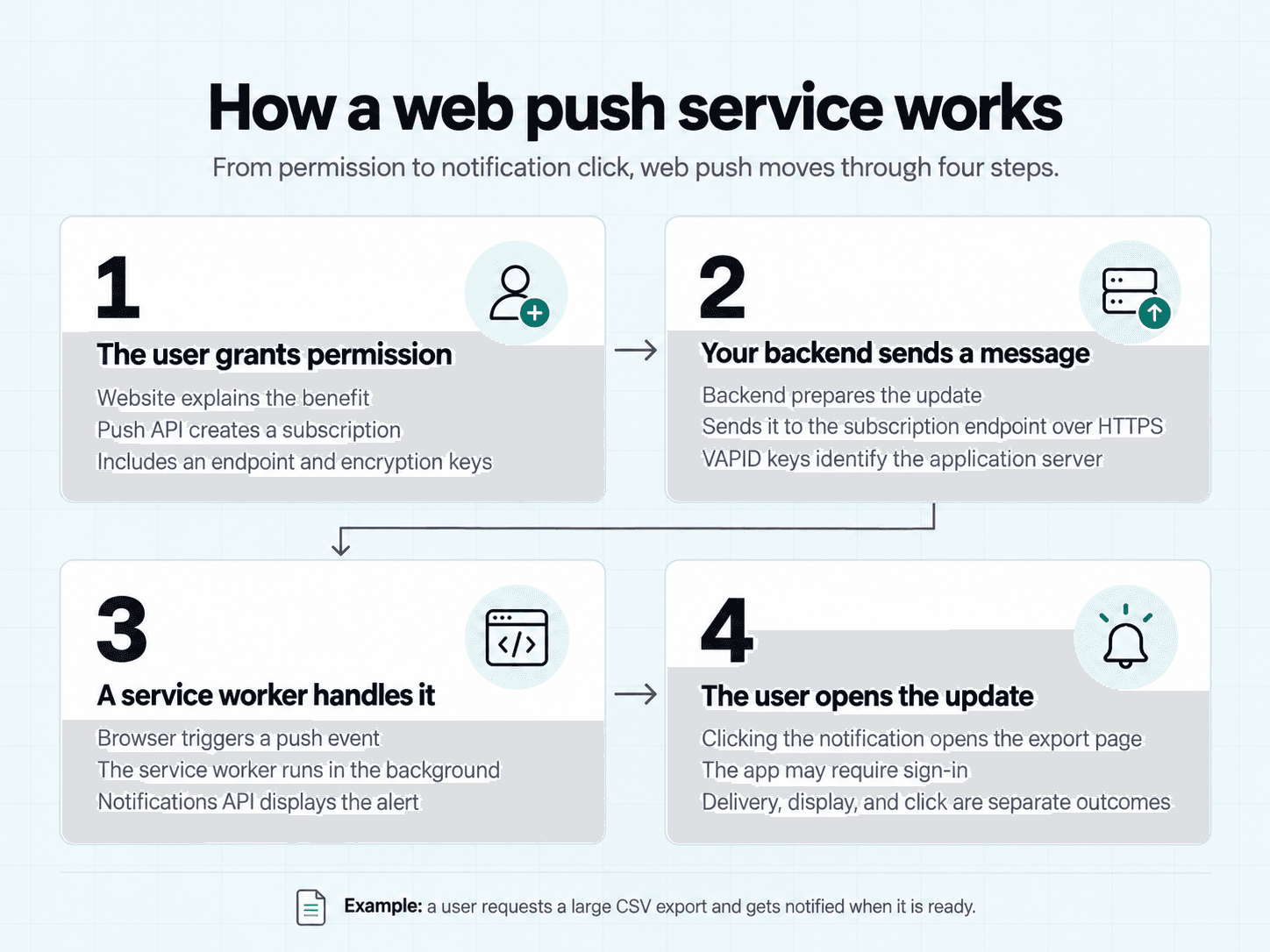
Web push connects your backend to a browser subscription. A service worker handles incoming messages, even when your website’s page isn’t open.
Here’s the basic flow:
User subscribes → Backend sends a message → Push service routes it → Service worker displays a notification
Let’s follow a simple example: a user requests a large CSV export from your SaaS product.
1. The User Grants Permission
First, your website explains why notifications would be useful. In our example, you might offer to notify the user when their export is ready.
If they agree, your website requests notification permission. The browser controls that permission prompt.
Your application then uses the Push API to create a subscription associated with its service worker.
The subscription contains:
- An endpoint, which identifies where your server should send push messages.
- Encryption keys, which help protect the message contents.
Your backend stores the subscription so it can send updates later. If the update belongs to a specific account, you also need to associate that subscription with the correct user.
2. Your Backend Sends a Message
Once the export finishes, your backend prepares a message such as “Your CSV export is ready.”
It sends the encrypted message payload to the subscription endpoint over HTTPS. That endpoint belongs to the push service selected by the browser.
A web push library or managed platform can handle much of this work for you.
You’ll also commonly use VAPID keys. These identify your application server to the push service. They serve a different purpose from the subscription’s encryption keys.
The push service validates the request and attempts delivery. It may temporarily queue the message if the device is unavailable, subject to the message’s expiry time.
3. A Service Worker Handles It
When the message arrives, the browser triggers a push event in your website’s service worker.
A service worker is a script that can handle background events separately from an open webpage. It doesn’t need to run continuously to receive a push event.
It reads the message and uses the Notifications API to display the alert.
For our export example, you could configure:
- Title: Your export is ready
- Body: Download your customer report.
- Click behavior: Open the relevant export page
WebKit’s Meet Web Push guide explains how push subscriptions, service workers, and the Notifications API work together to deliver and display notifications.
4. The User Opens the Update
When the user clicks the notification, your service worker can open or focus the relevant page.
Send them straight to the export, rather than making them search through a dashboard. If their session has expired, your app should require sign-in before showing private information.
One final detail: an accepted send request doesn’t prove the user saw or opened the notification. Delivery, display, and interaction are separate outcomes.
What Do You Need to Implement Web Push?
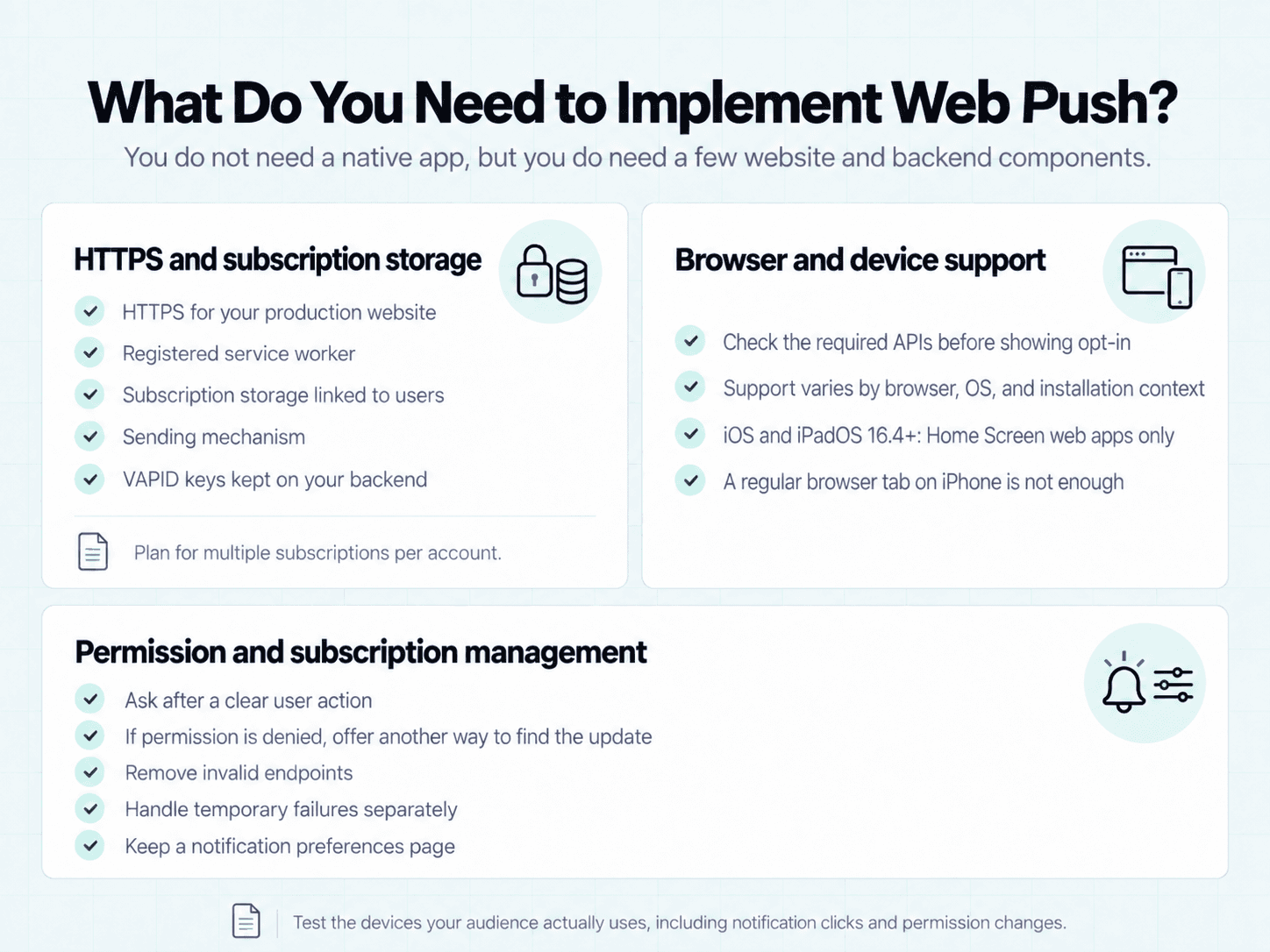
You don’t need a native mobile app to use a web push service. You do need a few components on your website and backend.
For a small SaaS product, start with these requirements before choosing a library or managed platform.
HTTPS and Subscription Storage
Your production website must use HTTPS. You also need a registered service worker and somewhere to store push subscriptions.
Here’s a practical checklist:
- HTTPS: A secure connection for your website.
- Service worker: A script that handles incoming push events.
- Subscription storage: A database that connects subscriptions to the appropriate users.
- Sending mechanism: A backend library or managed platform that sends push requests.
- Server credentials: VAPID keys where required, with the private key kept on your backend.
One user may subscribe from several browsers or devices. Plan for multiple subscriptions per account.
Browser and Device Support
Web push support depends on the browser, operating system, and installation context. Check for the required APIs before showing an opt-in button.
On iOS and iPadOS 16.4 or later, web push is available to web apps added to the Home Screen. Visiting your site in a regular browser tab alone isn’t enough.
Apple explains these requirements in its web push implementation documentation.
Test the devices your audience actually uses. Include notification clicks and permission changes, alongside your first successful send.
Permission and Subscription Management
Ask for permission after a clear user action, such as clicking “Notify me when my report is ready.”
If permission is denied, let the user continue using your product. Offer another way to find the update.
Subscriptions also need maintenance. Remove endpoints when the push service confirms they are no longer valid. Handle temporary failures separately.
My recommendation is to keep a notification preferences page. Give users control over which updates they receive, and explain how to disable browser notifications.
Practical Web Push Uses for Small SaaS Products
The best web push use cases start with a simple question: What update would save your user from checking the app again?
For indie developers and micro SaaS teams, a few useful notifications can be enough. Start with one clear need before adding more.
Tell Users When a Task Finishes
Background tasks are a natural fit for web push. Your user starts a job, leaves the page, and gets an update when the result is ready.
Examples include:
- A video finishes processing.
- A customer export is ready to download.
- A scheduled report becomes available.
- A data import finishes and needs review.
Make the notification specific. “Your March sales report is ready” gives more context than “Task complete.”
The click should open the relevant result. Keep that result available inside your app, too, so a missed notification doesn’t become a missed task.
Send Important Account Updates
Some updates help users act before a deadline or respond to someone else.
Situation | Useful notification |
A trial is ending | “Your trial ends tomorrow. Review your plan.” |
A teammate replies | “Sam replied to your project discussion.” |
A followed item changes | “The issue you follow has a new update.” |
Match each notification to the user’s preferences. Someone who wants report updates may have little interest in product announcements.
For essential account communication, keep an appropriate fallback channel. Web push depends on an active subscription and device conditions.
Bring Users Back With Relevant News
Web push can also help subscribers return when something they care about changes.
A feature they requested is now available. A saved search has a new match. A project they follow needs their input.
If you ask me, relevance matters more than frequency. Send an update because it helps the recipient, and give them an easy way to turn that category off.
Choosing a Channel for User and Developer Updates
The right channel depends on who needs the update and what they need to do next.
For a solo founder, two situations can look similar: a customer’s report is ready, and your deployment has failed. Both deserve an update, but they serve different needs.
Delivery channel | Main requirement | Useful for |
Web push | Browser permission and a valid push subscription | Timely updates that link back to a web app |
Native mobile push | An installed app, push registration, and permission where required for visible notifications | Updates connected to a native app |
An email address and appropriate messaging permissions | Detailed updates and messages readers may revisit |
Developer alerts are a use case, rather than a separate delivery technology. They can reach your team through browser notifications, mobile push, email, or other channels.
These channels can also work together. A report can appear in your app, trigger a web push notification, and remain accessible through an email link.
Should You Build or Use a Managed Service?
You can implement web push with a backend library or use a managed platform. Both approaches rely on browser push services.
The decision comes down to control, maintenance, and how much time your team can spend on notifications.
When Building Makes Sense
A custom implementation can suit a product with a few clear notification triggers and specific backend requirements.
You control how subscriptions are stored, when messages are sent, and how failures are handled.
However, using a library doesn’t remove the operational work. Your team still needs to:
- Protect credentials and subscription data.
- Remove invalid subscriptions.
- Handle retries and message expiry.
- Maintain notification preferences.
- Test browser and device behavior.
If notifications are a small feature, make sure their upkeep fits your development schedule.
When a Managed Service Helps
A managed web push service can reduce setup work. Depending on the provider, it may include subscription management, scheduling, audience targeting, and reporting.
Check what the platform actually handles. Features, limits, and supported devices vary.
Before choosing, ask:
Question | Why it matters |
Does it support our users’ devices? | Your audience needs to be able to subscribe. |
How does pricing grow? | Subscribers and message volume may affect costs. |
Can we export subscriptions? | Migration options matter if your needs change. |
What does delivery reporting measure? | An accepted message isn’t the same as a viewed notification. |
My opinion is that a solo founder should compare the recurring bill with the time required to maintain a custom setup.
Choose the approach that supports your current workflow and leaves you enough time to keep improving the product.
Common Web Push Mistakes to Avoid
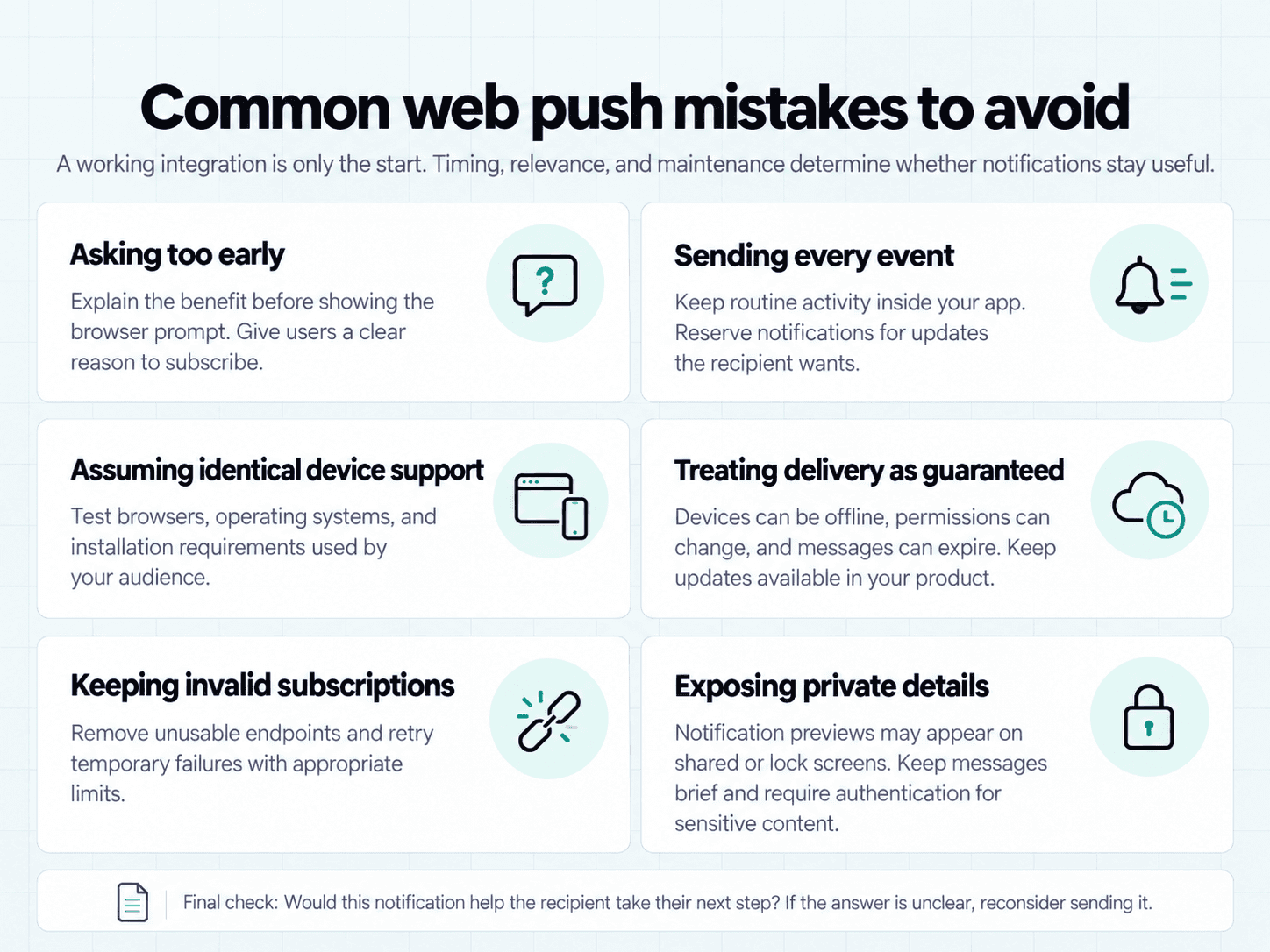
A working integration is only the start. Timing, relevance, and maintenance determine whether notifications stay useful.
Watch for these mistakes:
- Asking too early. Explain the benefit before showing the browser prompt. “Notify me when my export is ready” gives users a clear reason to agree.
- Sending every event. Keep routine activity inside your app. Reserve notifications for updates the recipient wants to know about.
- Assuming identical device support. Test your audience’s browsers and operating systems, including any installation requirements.
- Treating delivery as guaranteed. Devices can be offline, permissions can change, and messages can expire. Keep important updates available in your product.
- Keeping invalid subscriptions. Remove subscriptions when the push service confirms they are unusable. Retry temporary failures with appropriate limits.
- Exposing private details. Notification previews may appear on a shared screen or Lock Screen. Use a brief message and require authentication to view sensitive content.
A useful final check is simple: Would this notification help the recipient take their next step? If the answer is unclear, reconsider sending it.
Conclusion: Keep the Right People Updated
A web push service helps your product reach subscribers with timely browser notifications. Useful delivery starts with clear permission, relevant messages, and a reliable implementation.
For a solo founder or micro SaaS team, start small. Pick one update your users are waiting for, test the full flow, and give them control over what arrives.
Your users’ updates are one part of the picture. You also need to know when a payment comes in, a deployment fails, or your app goes down.
AppKeepr brings those developer events into one inbox, available on the web and your phone. Connect supported tools or send messages from your backend to keep track of the apps you run.
Start using AppKeepr for free and bring your important app updates together.
Frequently Asked Questions About Web Push Service
Yes. A subscribed browser can receive a push message without your website being open in a tab. A service worker handles the message and displays the notification. Delivery depends on browser behavior, device connectivity, operating system settings, and message expiry.
You don’t need to build a native mobile app. Web push uses browser technology. On iPhones and iPads running iOS or iPadOS 16.4 or later, users must add your web app to the Home Screen. They can then grant notification permission through a prompt triggered by a direct interaction.
No. Your website needs notification permission and a valid push subscription. A visit, account registration, or email subscription doesn’t grant browser notification permission. Explain the benefit and let the user choose whether to subscribe.
Some managed platforms offer free plans with usage or feature limits. You can also build a custom implementation using open-source libraries. Running your own setup still involves hosting, development, and maintenance. Compare the total cost with your expected usage.
Web push typically delivers notifications to your website’s subscribers. AppKeepr helps developers follow events from their own apps and tools. Use web push to tell a customer their report is ready. Use AppKeepr to follow payments, errors, deployments, uptime changes, and expiry reminders across the apps you run.
Last updated
Rate this article
Share