- Published
- Reading time
- 13 min read
How to Check Website Availability When a Site Won’t Load
- Written by
- Türkü Şimşek

To check website availability, test the exact URL with an external checker, then compare the result from another browser or network. Inspect any HTTP, DNS, or TLS errors before deciding what failed. One successful check does not prove that every page or feature works for every user.
A customer says your app won’t load. It opens normally on your laptop. Is the problem fixed, limited to their connection, or affecting users elsewhere?
For a solo founder, that uncertainty can interrupt an entire afternoon. The fastest way forward is to collect a few useful observations before changing settings or restarting services.
A website availability check gives you evidence from a particular request, location, and moment. Comparing results helps you narrow the investigation.
This guide walks through external checks, browser and network comparisons, and a command-line test. You’ll learn what the results mean, where they can mislead, and what to investigate when your own website is unavailable.
The Appkeepr Brief
- Check the exact URL. The protocol, hostname, and path can lead to different results.
- Compare independent observations. Test externally, then try another browser or network.
- Consider location. A successful check in one region does not establish availability everywhere.
- Read the failure details. DNS, connection, TLS, and HTTP results point to different investigation paths.
- Test the affected task. A working homepage does not prove that sign-in or another essential feature succeeds.
- Separate checking from monitoring. A one-time test answers a question now. Scheduled checks help detect future failures and recovery.
How to Check Website Availability
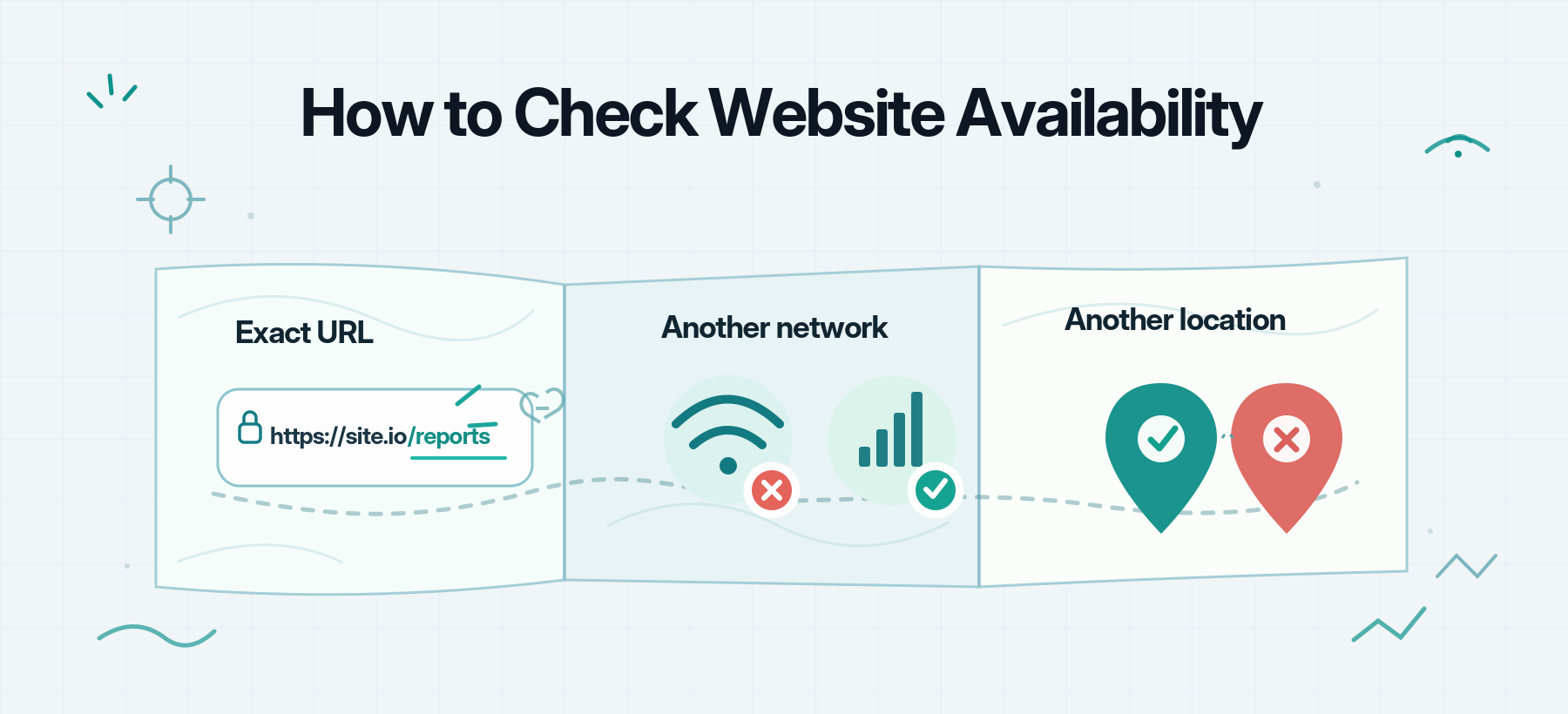
Start by collecting a few independent results. Note the URL, time, location, and error for each check so you can compare them meaningfully.
Test the Exact URL From Outside Your Network
Copy the address that failed, including https://, the hostname, and the path. Your homepage and application may use different hosts or infrastructure.
Test that URL from another connection or through an external HTTP checker. If you use a checker, confirm whether it requests the full path or only the homepage.
A successful request to your homepage does not explain a failure at /reports.
Read beyond a simple “up” or “down” label:
- Did the domain resolve?
- Was a connection established?
- Did HTTPS negotiation succeed?
- What HTTP response came back?
- Was a redirect involved?
An external result describes one request. It does not establish availability for every visitor or show what happened before the check.
Use public URLs only. Do not paste addresses containing private tokens, credentials, or sensitive query parameters into third-party tools.
Compare Another Browser and Network
Open the same URL in another browser. Mozilla’s connection troubleshooting guidance recommends this comparison to help distinguish browser-specific problems from broader connection issues.
A private window can also help compare behavior without your normal session. It still uses your device and connection, so it is not a fully independent test.
Next, try another network, such as mobile data instead of Wi-Fi. Keep the device and URL the same where possible.
If the result changes, you have narrowed the investigation. You have not yet proved whether DNS, routing, filtering, or another difference caused it.
Check From Another Location
If you have access to checks from multiple locations, compare a region near the affected users with another region. Repeat the check if the problem appears intermittent.
Use the pattern to decide what to investigate next:
What you observe | Reasonable next step |
Another browser works on the same device | Compare browser settings, extensions, and session behavior |
Mobile data works but Wi-Fi fails | Investigate network-specific DNS, routing, or filtering |
One external location fails while others pass | Check regional routing, access rules, and CDN behavior |
Several independent checks fail similarly | Review the shared error and investigate the affected service |
Checks pass but a customer task fails | Test the exact page, account conditions, and workflow |
These are investigation paths, not definitive diagnoses. Preserve the evidence before making changes so you can tell whether a later action helped.
Manual checks help you investigate a problem now. Scheduled monitoring addresses a different gap: detecting failures when nobody is actively checking.
How to Interpret Availability Check Results
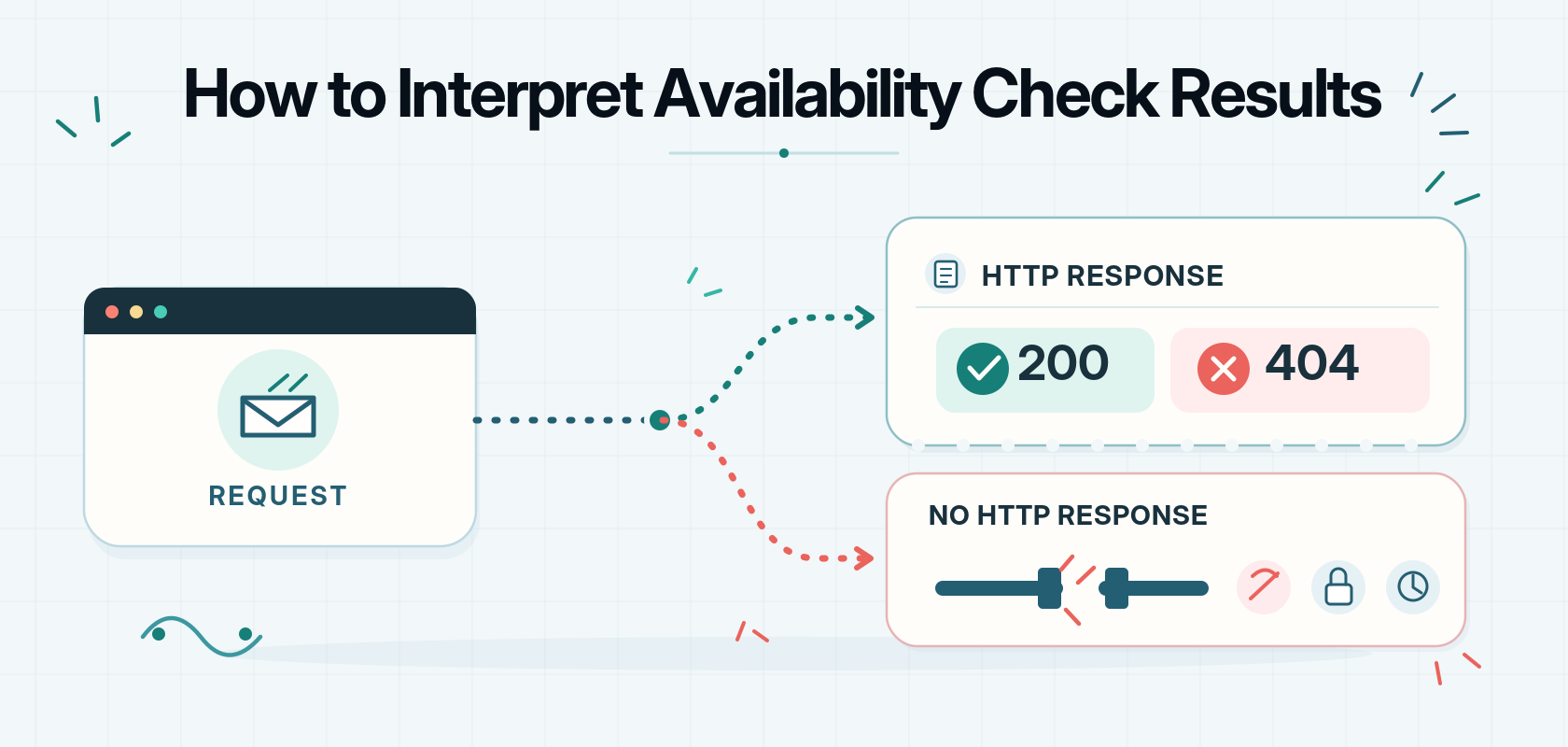
An availability result helps you identify where a request succeeded or failed. It does not always reveal the underlying cause.
Start by distinguishing an HTTP response from a failure that prevented a usable HTTP exchange.
HTTP Responses: Success, Redirects, and Errors
The HTTP specification defines status codes as information about the outcome of a request.
Use these common results as a starting point:
Result | What it tells you | What to investigate |
200 OK | The server reports that the request succeeded | Whether the content and affected feature work |
301 or 302 | The request is being redirected | The destination and whether the redirect chain completes |
401 | Valid authentication credentials are required | Whether the request includes the expected authentication |
403 | The server refuses the request | Permissions, access policies, or filtering |
404 | The resource was not found, or the server will not disclose that it exists | The exact path and expected access |
5xx | A server or intermediary reports an error | Application, proxy, and dependency details |
A 403 response from an automated checker can reflect bot protection rather than an outage affecting ordinary visitors. Likewise, a 404 on one route does not establish that the entire website is down.
Even HTTP 200 needs context. An application can return a successful status while displaying an error message or failing a later action.
DNS, Connection, and TLS Failures
Some requests fail before an HTTP status arrives.
- DNS failure: The client could not resolve the hostname. Compare the spelling, resolver results, and relevant DNS records.
- Connection failure: The client could not establish a connection. Investigate the address, port, network path, and whether the service is accepting connections.
- TLS failure: The HTTPS negotiation or certificate verification failed. Review the specific error before changing anything.
- Timeout: A configured time limit expired. Identify which stage stalled rather than assuming the server is overloaded.
The curl error reference distinguishes these failure categories, helping you interpret command-line results too.
Treat each error as evidence that narrows the investigation. A certificate error does not always mean expiry, and a timeout does not identify a single root cause.
Check the Page or Feature That Failed
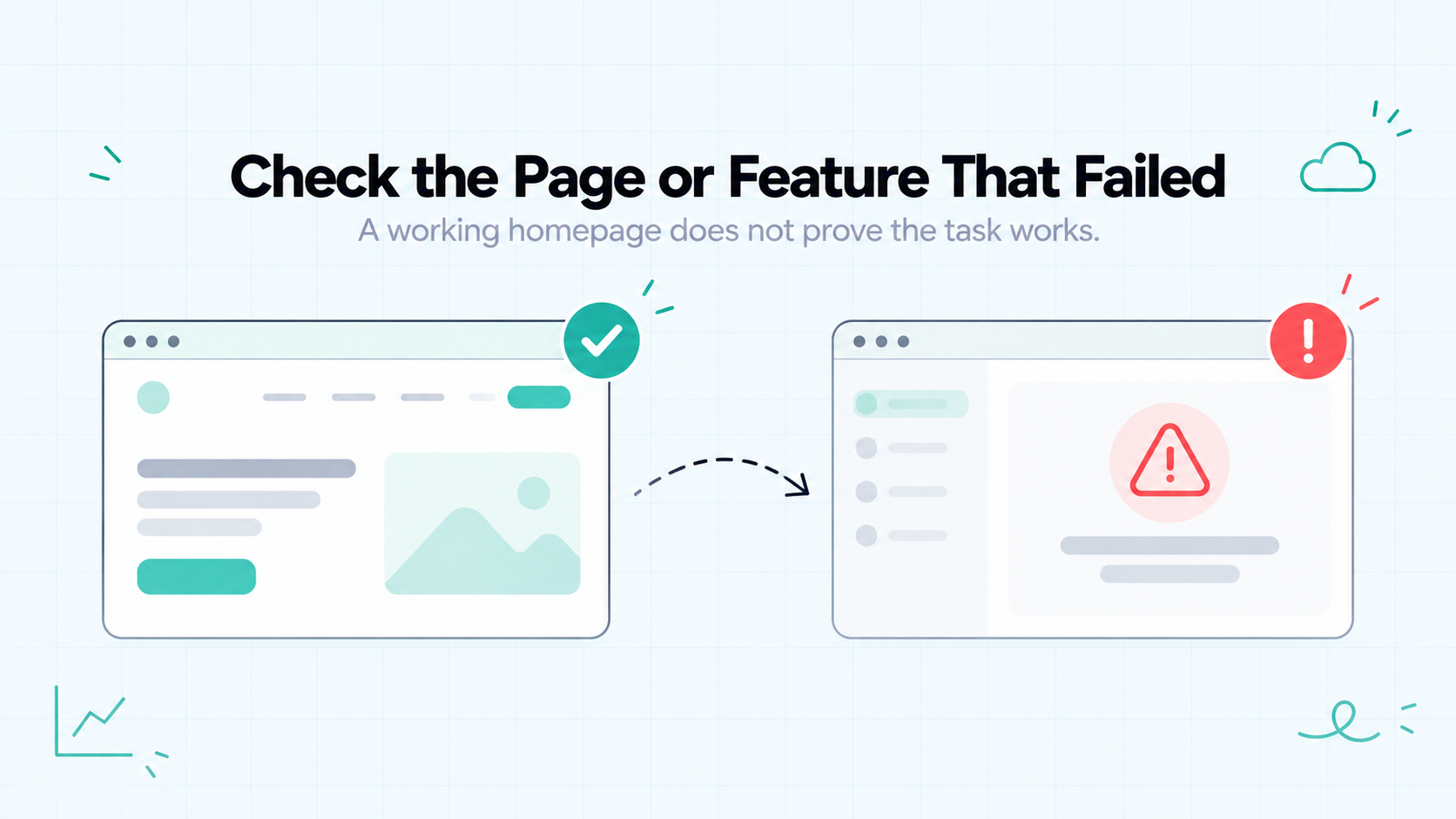
Once you’ve compared connections and read the error, test the specific part of the website that caused the problem. A working homepage does not establish that the affected page or feature has recovered.
Compare the Homepage With the Affected Page
Open the homepage, then visit the exact URL that failed. Note whether the behavior differs.
For example:
- The homepage loads, but the application does not.
- The dashboard opens, but report downloads fail.
- A direct link fails, but navigating from the homepage works.
- Public pages load, but account pages redirect repeatedly.
These patterns help narrow the investigation. They do not establish the cause by themselves.
Check whether the address changes during navigation. You may be reaching a different hostname or being redirected to a sign-in page.
Repeat the Affected Task
If the page loads, repeat the action the user reported. For a scheduling app, that might mean viewing available slots rather than simply opening the booking page.
Use a test account where possible. Avoid creating real bookings, sending customer messages, or triggering payments during diagnosis.
Record the steps and the point where behavior changes:
What you observe | What to investigate next |
Page opens, but an action fails | The request and dependencies behind that action |
One account fails while another works | Permissions, session state, and account-specific conditions |
A page repeatedly returns to sign-in | Authentication, cookies, and redirect behavior |
The problem appears intermittently | Timing, affected requests, and relevant logs |
A spinner, blank panel, or error banner is useful evidence even when the page itself loads.
After a fix, repeat the same steps under the conditions that originally failed. Recovery means the affected task works again, not simply that the homepage is reachable.
Why a Website Can Be Up for Some Users
Visitors do not always reach your website through the same network path or receive the same response. Conflicting results can reflect a partial problem rather than an incorrect report.
Several differences can explain the pattern:
- DNS caching: Different resolvers may temporarily return different addresses after a record changes.
- Regional routing: A network problem may interrupt some routes while others remain usable.
- CDN behavior: Different locations may reach different edge servers or cached content.
- Access policies: Geographic restrictions, firewall rules, or bot protection may block particular requests.
- Connection differences: IPv4 and IPv6 paths can behave differently.
Cloudflare’s DNS documentation explains how a record’s time to live, or TTL, controls caching. This helps explain why a DNS change may not appear to every visitor simultaneously.
For example, one customer may still reach an old server address while another reaches the replacement. That is a possible explanation to verify, not a reason to assume every mismatch is “DNS propagation.”
The same caution applies to automated checks. A blocked request may reveal an access rule affecting the checker rather than a failure affecting normal visitors. Conversely, a successful check may miss a region where customers cannot connect.
When results disagree, record the affected location, network, exact URL, time, and error. Compare those details with logs and recent changes.
Avoid describing the website as “down for everyone” or “working normally” until the evidence supports that scope. A narrower statement, such as “the application fails on this network” is more useful for investigation.
What to Check When Your Own Website Is Down
If the evidence points to your service, focus on the affected components and recent changes. Avoid changing several settings at once: it makes the outcome harder to explain.
Review Changes and Dependencies
Start with the period just before the first reported failure.
- Deployments: Did a release introduce application errors or change a route?
- Configuration: Were environment variables, credentials, or access rules updated?
- DNS: Did records or nameservers change?
- Dependencies: Are the database, authentication service, and other essential systems responding?
- Logs: Do errors match the affected request and time?
Check relevant provider status pages, but treat them as supporting evidence. A normal status page does not rule out an isolated problem affecting your account or application.
If you ask me, the most useful starting point is a specific request paired with a timestamp. That gives you something concrete to match against logs and changes.
Restore Service and Verify Recovery
Choose a recovery action supported by the evidence. If a deployment caused the failure, a rollback may help—but first check compatibility with database migrations and configuration changes.
Preserve relevant logs before restarting or replacing components where practical.
After the change, repeat the original failing request and task. Recheck affected networks or locations where possible. Atlassian’s incident-response guidance includes testing and validation as part of recovery, rather than treating restoration alone as sufficient.
If you need help from a provider or teammate, share:
- The affected URL, without secrets or private query parameters.
- The timestamp and time zone.
- The error text, status, or request identifier.
- Which networks, locations, or accounts are affected.
- Relevant changes and actions already attempted.
Keep affected users informed when the disruption continues. Describe the confirmed impact and avoid promising a recovery time you cannot support.
Keep Checking After the Immediate Problem
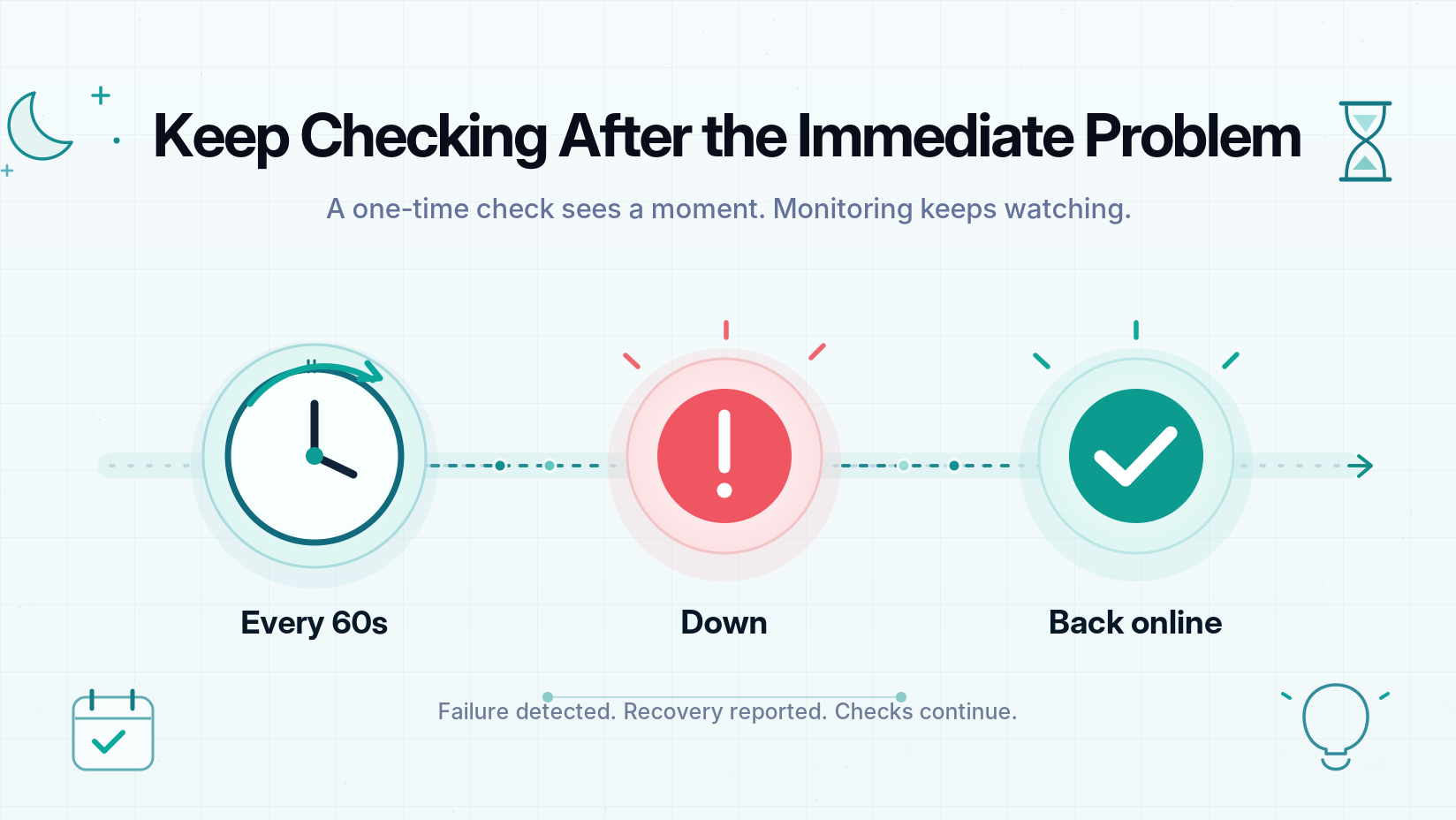
A manual check helps you investigate what is happening now. It cannot tell you when the next failure will occur, especially while you’re asleep or working on something else.
Scheduled monitoring repeats checks without someone refreshing the page. When a result meets the failure rules, it can generate a notification.
Start with essential endpoints. Choose URLs that provide useful evidence about your application, rather than checking only the marketing homepage.
Follow Downtime and Recovery With Appkeepr
Appkeepr checks supported public endpoints and brings monitoring messages into the same inbox as updates from your code and connected services.
Its uptime documentation specifies:
- Checks every 60 seconds, with a ten-second timeout.
- HTTP 200–299 treated as healthy.
- A Down message after the first failed check.
- A Back online message after the first successful check following that failure.
Add your endpoint under Sources → Uptime, choose a destination channel, and subscribe to receive notifications. Use the final URL because redirects are not followed.
These checks help you notice endpoint failures and recovery. They do not verify every customer task or establish availability from every region.
For a solo founder or micro SaaS team, this provides a way to follow essential endpoints while keeping manual investigation for the problems that need your attention.
Conclusion: Check, Compare, Then Investigate
To check website availability, start with the exact URL and compare results across browsers, networks, and locations. Read the error details before deciding what failed.
Keep the scope clear. A working homepage does not prove that every feature works, and one failed request does not establish a worldwide outage.
If you own the website, match the evidence with recent changes and logs. After a fix, verify the original failing task.
Manual checks help resolve today’s uncertainty. Scheduled monitoring helps you notice future failures. Get started with Appkeepr to follow supported endpoints and receive downtime and recovery notifications.
Frequently Asked Questions
Open the exact URL in another browser, then try it through a different connection, such as mobile data instead of Wi-Fi. Compare the error messages and note when each check happened. If you can obtain an independent result from another location, compare that too. These observations help establish the scope of the problem, but no single successful request proves that every page or feature works for everyone.
The connections may use different DNS resolvers, network routes, filtering rules, or public IP addresses. A website’s access policies may also treat those addresses differently. Keep the device, browser, and URL the same when comparing connections to reduce other differences. The result points toward a connection-dependent problem, but it does not identify the cause by itself or prove that the Wi-Fi router is faulty.
HTTP 200 means the server reports that a particular request succeeded. It does not verify every resource, account, or action on the page. A dashboard could load while report downloads fail, or a page could return 200 while displaying an application error. Inspect the expected content and repeat the affected user task before concluding that the problem is resolved.
Use scheduled availability checks for the public endpoints your users depend on. Define what counts as a healthy response, configure notifications, and verify delivery through a controlled test. Appkeepr can check supported endpoints and create downtime and recovery messages. Scheduled monitoring still has limits: short failures between checks can go undetected, and a passing endpoint check does not verify every workflow or location.
Rate this article
Share