- Published
- Reading time
- 14 min read
Mobile Notifications Explained: From Phone Alerts to SaaS Updates
- Written by
- Türkü Şimşek
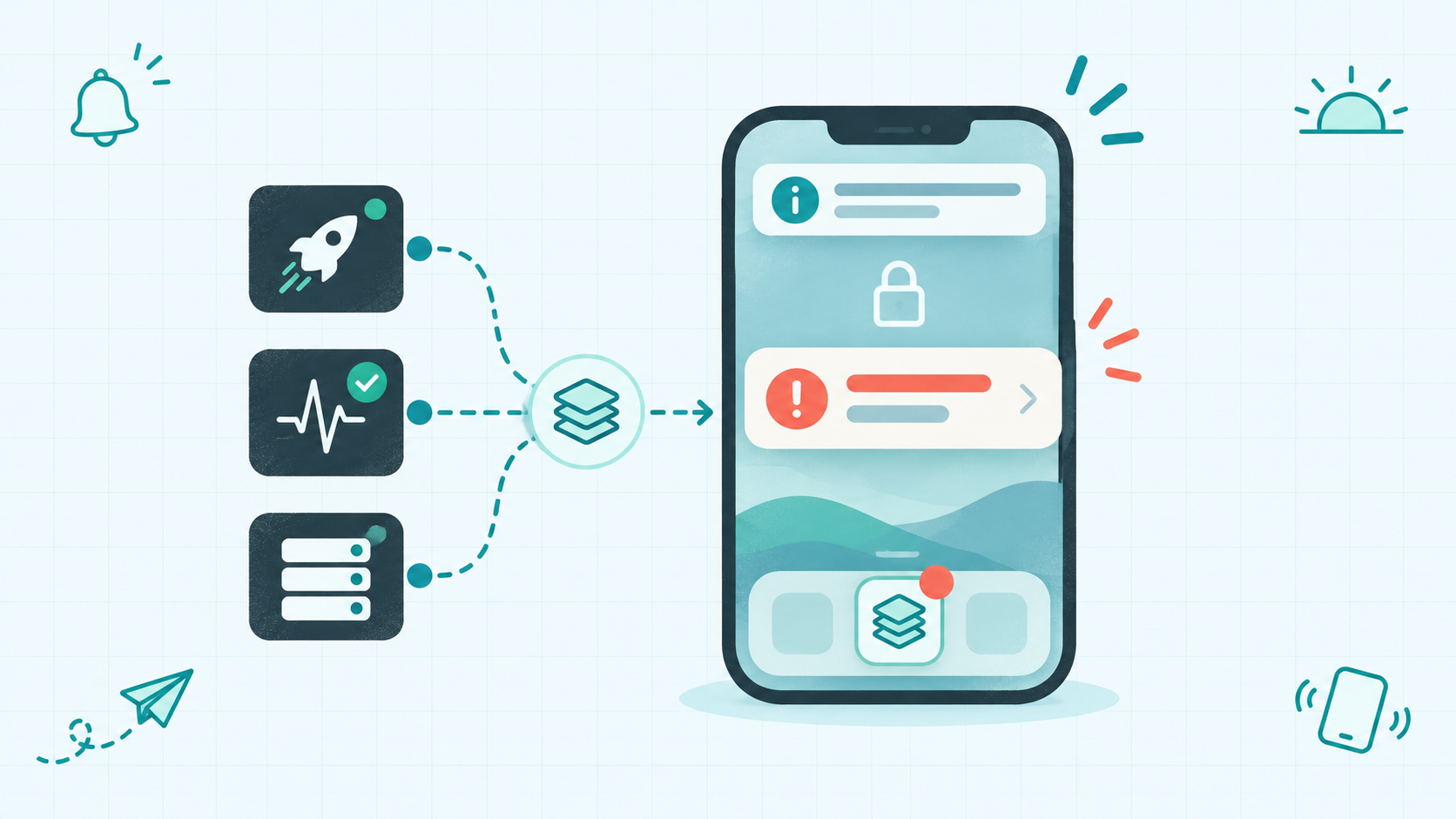
Mobile notifications are alerts presented on a phone or tablet. They can report messages, reminders, product events, or service problems. Some arrive through remote push services; others are triggered on the device. Whether they appear or make a sound depends on permissions, app behavior, and device settings.
A failed deployment, a new subscriber, and a routine background update do not deserve the same interruption.
But when you run a small SaaS, it is easy to send every event to your phone or keep checking dashboards because nothing reaches you.
Useful mobile notifications sit between those extremes. They help you notice events that need attention while leaving routine information somewhere you can review later.
This guide explains notification types, how push delivery works, and why alerts can be delayed or silent. It also shows how to choose meaningful product updates and receive them on your phone without building your own mobile app.
The Appkeepr Brief
- Mobile notifications are broader than push. Apps can also schedule or trigger notifications locally on the device.
- Choose the right message type. Push alerts, in-app messages, and SMS reach people through different channels.
- A successful send is not proof of attention. Delivery, display, and whether someone reads an alert are separate stages.
- Prioritize events that need action. Deployment failures and service outages may deserve an interruption; routine updates can wait.
- Check permissions and settings. Connectivity, notification controls, and Focus or Do Not Disturb can affect the experience.
- Test the complete path. Verify that a real source event produces a useful notification on the intended phone.
What Are Mobile Notifications?
Mobile notifications are alerts that a phone or tablet presents to draw attention to an event. They might announce a message, remind you about a task, or report that a deployment failed.
Depending on the app and device settings, they can appear as:
- Banners: Brief alerts displayed while you use the device.
- Lock Screen notifications: Updates visible without opening the app.
- Notification lists: Alerts collected for later review.
- Badges or dots: Indicators associated with an app icon.
An alert may also include a sound or vibration. Those signals are not guaranteed just because a notification appears.
The appearance does not tell you how the notification was triggered. A reminder scheduled on your phone and an alert sent after a server failure can look similar.
For a solo developer or small development team, the useful distinction is between what happened, how the update reached the device, and how it was presented.
Consider a failed background job. Your backend first detects the failure. A notification service then handles the update, and the phone decides how to present it under the applicable settings.
That sequence also explains why an event in a dashboard does not automatically mean a visible alert reached your phone.
Push, Local, In-App, and SMS: What’s the Difference?
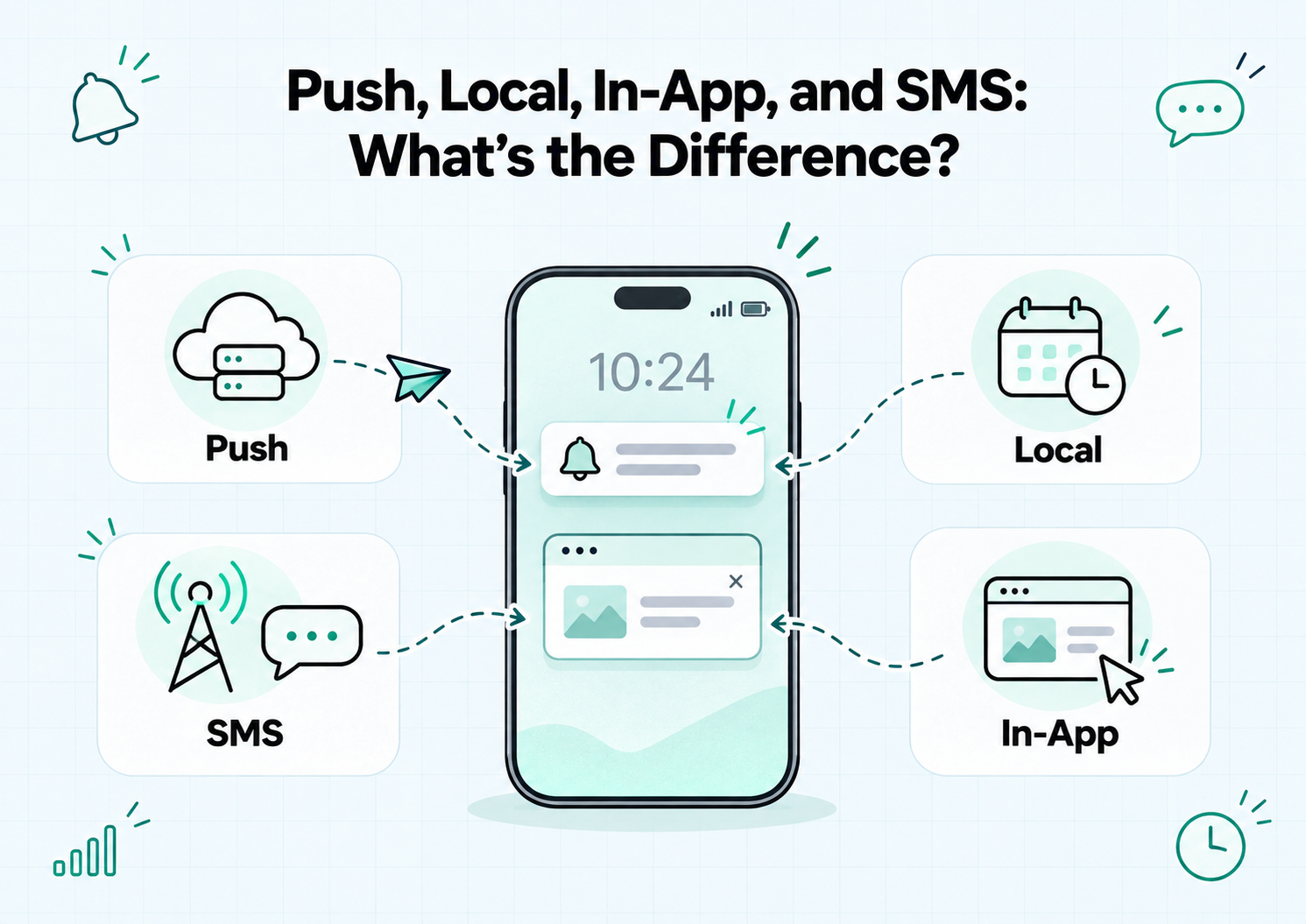
These message types can all draw attention to an update, but they work differently. Choose based on where the event happens and when someone needs to see it.
Push and Local Notifications
Push notifications originate outside the device. A backend sends a message through a push delivery service to reach the receiving app or device.
For example, a deployment service can report a failed release, leading to an alert on your phone.
Local notifications are scheduled or triggered on the device. A reminder app might schedule an alert for tomorrow morning without needing a new server message at that time.
Apple’s local notification guidance explains that the operating system can deliver a scheduled notification even when the app is not running.
Both types can appear as similar banners or Lock Screen alerts. Their appearance does not reveal where they originated.
In-App Messages and SMS
In-app messages appear within an app’s interface while someone uses it. They might explain a new feature or show a warning beside the action it affects.
For example, Firebase’s in-app messaging documentation describes contextual messages for active app users. These are different from alerts presented outside the app.
SMS reaches a phone number through a mobile messaging service. It does not require your product’s app, although delivery still depends on the messaging service and network conditions.
Message type | Source or trigger | Where it appears | Connectivity considerations | Example |
Push | A remote system | Notification surfaces, subject to app and device settings | Requires network connectivity for remote delivery | Deployment failure |
Local | On-device scheduling or logic | Notification surfaces, subject to settings | A pre-scheduled time-based alert can work offline | Task reminder |
In-app | App logic or remotely supplied content | Inside the app | Depends on whether content is local, cached, or fetched | Feature guidance |
SMS | A sender addressing a phone number | Messaging app, with optional system alerts | Uses carrier messaging; supported Wi-Fi delivery may also be available | Delivery update |
For a small SaaS team, remote operational events usually call for push or another external messaging channel. In-app messages are better suited to information someone needs while using the product.
How Mobile Push Notifications Work
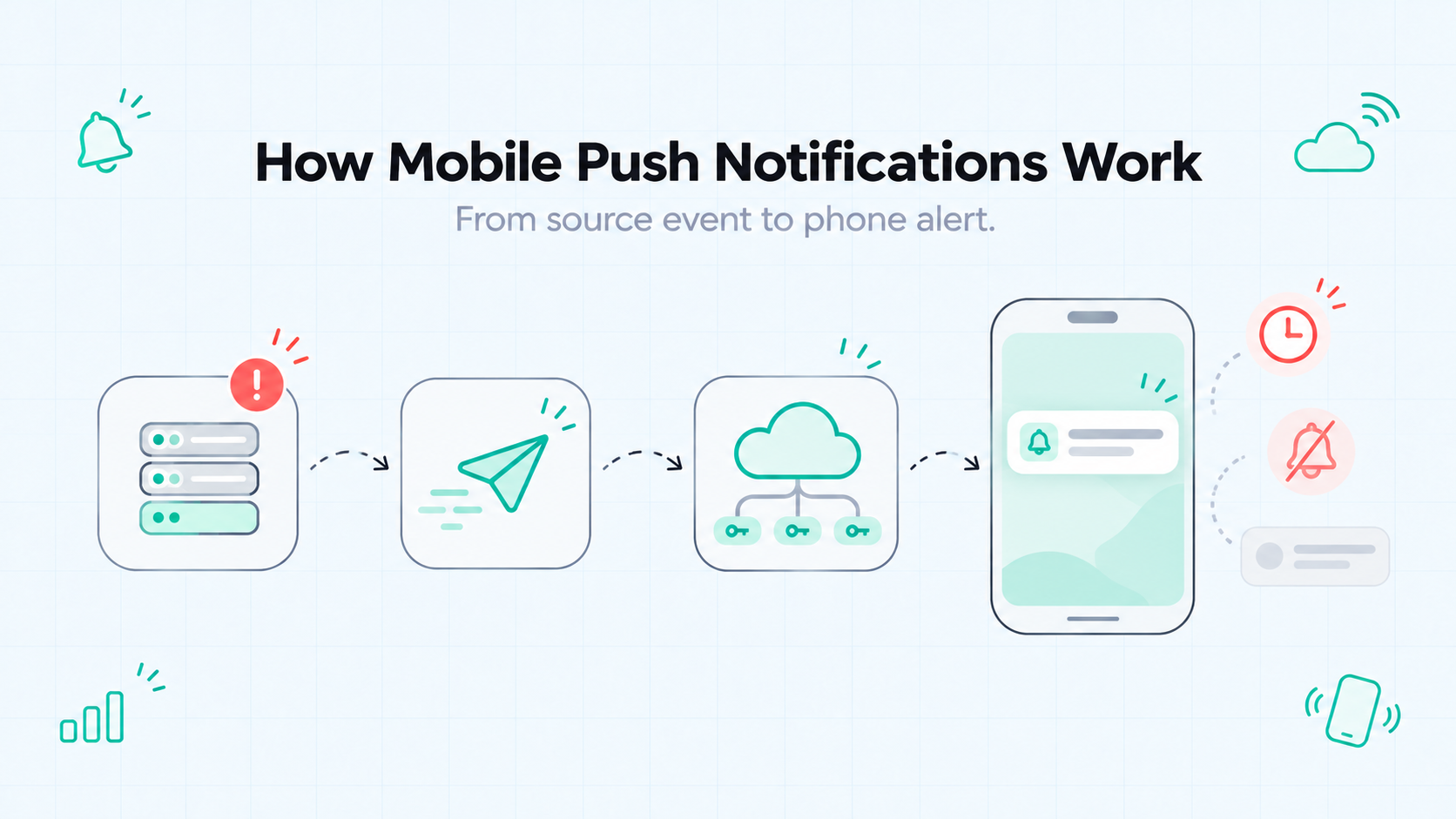
A mobile push notification starts with an event outside the phone. For a small SaaS, that might be a failed deployment or a completed background job.
The delivery path usually involves four steps:
- An event occurs. Your backend or connected service detects something worth reporting.
- A notification request is sent. The sending system prepares the message and identifies its destination.
- A push service handles delivery. Apple Push Notification service (APNs) serves Apple devices. Firebase Cloud Messaging (FCM) supports messaging across platforms and uses APNs for Apple delivery.
- The device handles the message. Its presentation depends on the message type, app state, permissions, and notification settings.
Apps typically register for push delivery and obtain a token identifying an app installation or app-device destination. The sending system uses the appropriate token to address messages. Tokens can change, so the delivery system must keep them updated.
If you use an existing service to receive operational alerts, it can handle this infrastructure. You configure your sources and receiving app rather than building a mobile notification system yourself.
One distinction matters throughout: accepted for delivery does not mean delivered, displayed, or read.
Firebase’s delivery documentation states that receiving a message ID means FCM accepted the message for delivery. The device may be offline, delivery may be delayed, or the message may expire before it arrives.
For important alerts, test the complete path from the source event to the intended phone. An entry in a sending log is useful evidence, but it does not establish that someone noticed the update.
Which Events Deserve a Mobile Alert?
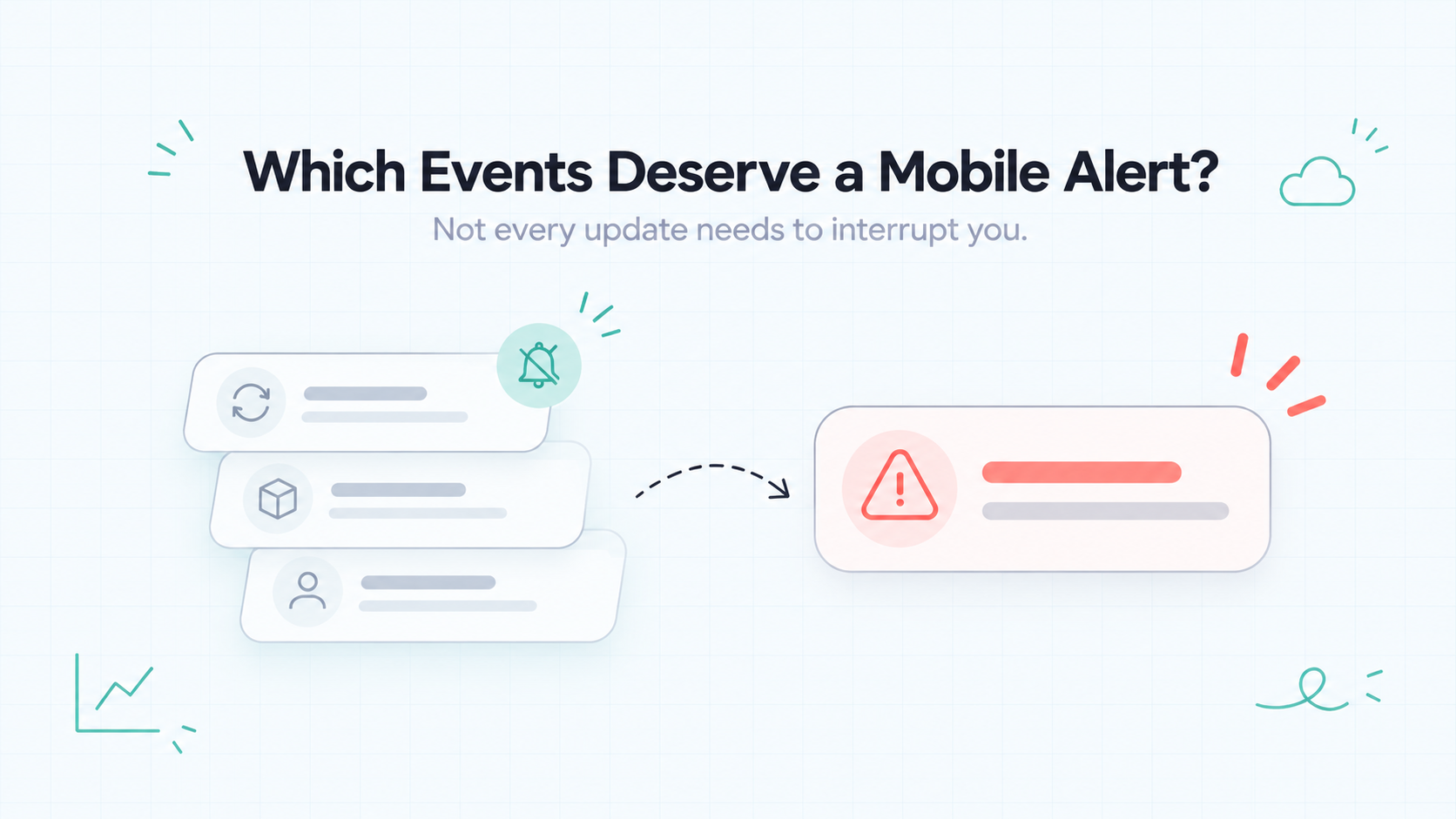
An event deserves a phone alert when noticing it sooner changes what you should do. That is a more useful starting point than sending every update to your Lock Screen.
Prioritize Events That Need Attention
For each event, ask: Who needs to know, how soon, and what can they do?
A deployment failure may need immediate investigation if it leaves production unavailable. A failed preview build can usually wait until you return to development.
The same event can deserve different treatment depending on its impact:
Event | When a phone alert helps | Useful next step |
Public API becomes unavailable | Customers depend on it now | Check impact and recent changes |
Production deployment fails | Service is disrupted or intervention is required | Review the failure and recovery options |
Essential background job fails | A deadline or customer task is at risk | Investigate, then retry where safe |
Service recovers | Someone is actively handling the incident | Verify the affected task works again |
Certificate approaches expiry | Renewal needs attention | Check renewal status before the deadline |
Keep detection separate from delivery. A message sent when a job fails will not reveal a job that never started. Detecting missing activity requires an appropriate check upstream.
Keep Routine Updates Out of the Urgent Stream
A successful scheduled job, a routine deployment, or a new signup can be worth recording without requiring an interruption.
Choose how to review those events:
- Phone alert: Something needs timely attention.
- Inbox entry: Context you may need later.
- Summary: Repeated activity better reviewed together.
These are choices for your notification setup, not features every service automatically provides.
If you ask me, start with a small number of actionable alerts. Add more only when you can explain what earlier attention would improve.
After an incident, review the notifications too. Remove duplicates, clarify vague messages, and add a signal where an important failure went unnoticed.
How to Receive Product Alerts on Your Phone
Receiving alerts yourself is different from adding notifications to your customer-facing app.
For internal updates, you can use an existing receiving app. Your backend or connected services provide the events, and the app brings them to your phone.
Bring Your Product Updates Into Appkeepr
Appkeepr brings messages from your code, connected tools, and supported monitoring checks into one inbox.
For example, an unavailable API can generate a Down message through Appkeepr’s uptime monitoring. A supported deployment integration can report relevant deployment events. Both give you information to investigate without manually checking each source.
Start with one event you want to follow:
- Create a channel. Give it a clear purpose, such as production updates.
- Subscribe to it. Subscriptions bring channel messages into your Inbox and enable notifications.
- Connect a source. Configure a supported integration, add an uptime check, or send a message from your backend through the API.
- Set up your phone. Sign in with the same account and workspace, then enable notifications.
- Send a new test message. Confirm that it reaches the intended phone.
The Appkeepr quickstart walks through sending your first message. Keep API tokens on your server and out of browser code.
Test the source event too. A manually sent message verifies delivery, but it does not prove that your deployment integration or failure-detection logic is configured correctly.
This approach lets a solo developer or small team receive operational updates without building a dedicated mobile app. Device settings and connectivity can still affect when an alert appears.
Why Mobile Notifications May Be Delayed or Missing
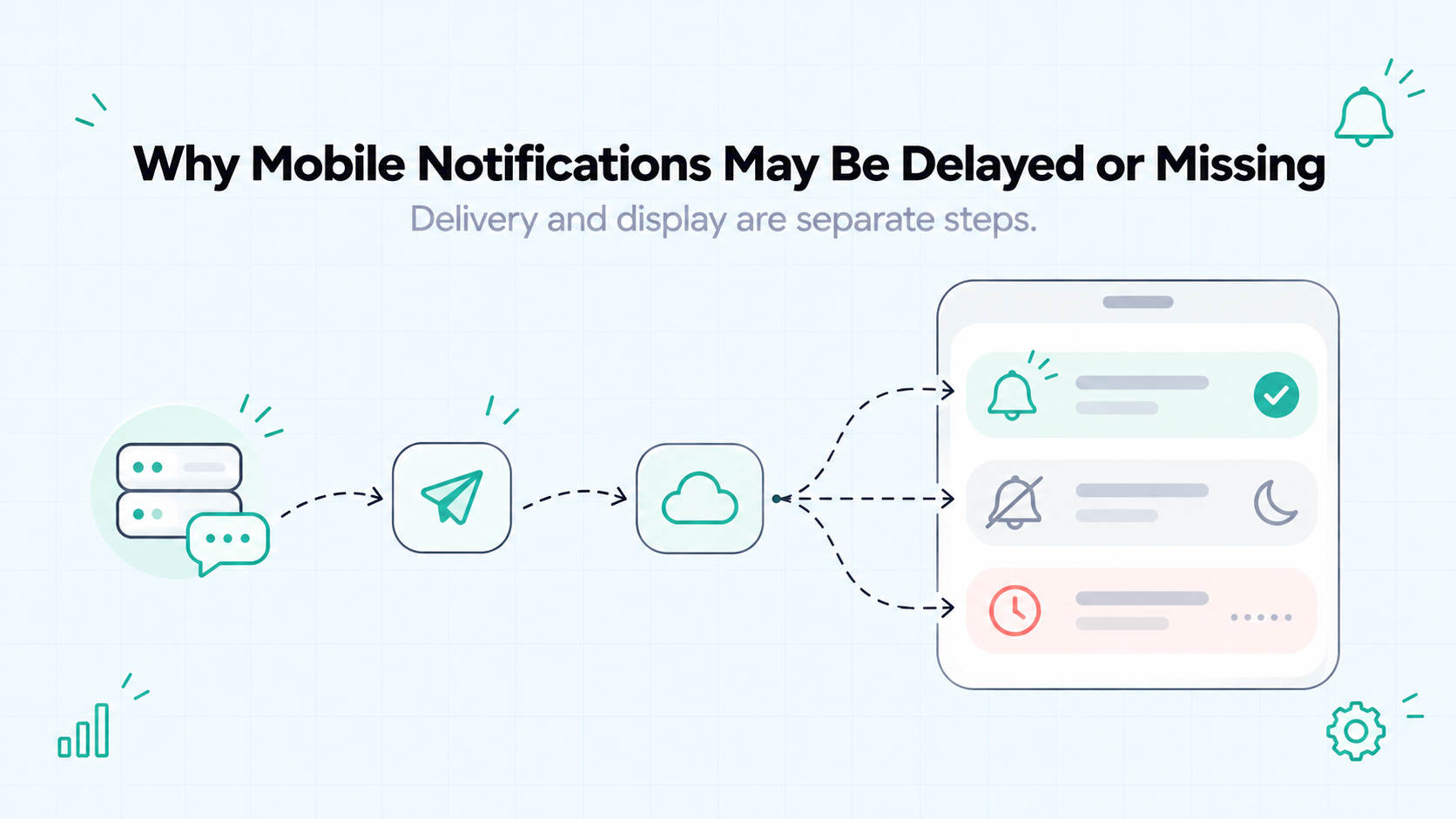
A missing alert does not always mean the message failed to reach the device. It may have arrived silently, appeared somewhere unexpected, or been handled differently while the app was open.
Start by separating delivery from presentation.
Check Permissions and Device Settings
Open the receiving app’s notification settings on your phone. Confirm that notifications are allowed, then check the options for sounds, banners, and Lock Screen display.
On Android, individual notification channels can have different settings. Android’s permission documentation also explains that Android 13 and later require runtime permission for most app notifications.
Review Focus or Do Not Disturb settings too. Depending on your configuration, they can silence interruptions without removing the underlying notification.
Check the app’s own preferences, including channel subscriptions or muted sources. Device permission alone does not guarantee that the app will generate every possible alert.
Trace the Event and Delivery Path
If settings look correct, follow the message from its source:
Stage | What to verify |
Source event | Did the failure or update actually occur? |
Sending system | Did the integration or backend submit the message? |
Receiving service | Was the request accepted or rejected? |
Destination | Was it addressed to the correct account, channel, or device? |
Phone | Was it connected, and where did the notification appear? |
An offline device may receive a pending push later, provided the message has not expired. Other delays depend on platform behavior, message settings, and the delivery service.
If you maintain the notification infrastructure, check rejected requests and invalid or outdated registration tokens. If you use a receiving service, inspect the delivery information it provides.
Finally, send a new test event and record the result with the app both open and in the background. Change one setting at a time so you can identify what helped.
For incidents that require a guaranteed response, do not treat one phone notification as proof that someone has acknowledged the problem.
Make Mobile Notifications Worth Opening
A useful alert tells you what happened, why it matters, and where to investigate. You should not need to open several dashboards just to identify the affected service.
Use this checklist when writing notification content:
- Name the affected service. “Production API” provides more context than “Something failed.”
- Describe the observed event. Say “returned HTTP 503” rather than guessing that the database caused it.
- Include useful context. Add the environment, job name, or detection time where relevant.
- Provide a clear destination. Link to the incident, deployment, or relevant details when supported.
- Match urgency to impact. Reserve interruptions for events that need timely attention.
- Reduce duplicates. Where your setup supports it, group related updates or notify on meaningful state changes.
Compare these illustrative messages:
Less useful | More useful |
Error! Something went wrong. | Production API check failed. |
Job failed. | Daily report job failed. Report generation stopped before completion. Open job logs. |
The clearer versions report evidence without claiming an unverified cause.
Keep previews brief and limit sensitive information. Lock Screen text may be visible to someone other than the intended recipient. Avoid credentials, private customer details, and raw request data.
If you ask me, every notification should earn its interruption. If the recipient cannot identify a useful next step, improve the message or move the update to a quieter place for later review.
These are writing and configuration principles. Available links, grouping, and notification controls depend on the service you use.
Conclusion: Choose Alerts You Can Act On
Mobile notifications are useful when they connect an important event with someone who can respond. Choose the right message type, give it clear context, and respect the recipient’s settings and attention.
For a solo developer or small SaaS team, start with a few meaningful alerts. Test the complete delivery path and review anything that becomes repetitive or unclear.
Remember that sending, delivery, display, and acknowledgement are separate steps. A successful request does not prove that someone noticed the problem.
Ready to bring product updates to your phone? Get started with Appkeepr, connect a relevant source, and verify your first notification.
Frequently Asked Questions
No. Mobile notifications describe alerts presented on a phone or tablet, while push describes a remote delivery mechanism. Apps can also schedule or trigger local notifications on the device. A local reminder and a remotely triggered deployment alert may look similar, but their sources differ. In-app messages and SMS are separate messaging methods that can also draw attention to updates.
Yes. A visible push notification can appear when the receiving app is not in the foreground, subject to permissions, connectivity, and platform behavior. The operating system can also present previously scheduled local notifications without the app running. However, “closed” can mean different things, and force-stopping an app or changing system settings can affect behavior. Test the conditions that matter for your receiving app.
Remote push delivery requires network connectivity to reach the device. If the device is offline, a service may hold the message for later delivery, depending on its expiration and delivery settings. It may expire before the device reconnects. Local notifications are different: a reminder already scheduled on the phone can trigger offline without receiving a new server message.
Permission to display notifications does not necessarily mean sound is enabled. The app’s notification settings, Android channel settings, silent mode, volume, or Focus and Do Not Disturb rules can affect how an alert is presented. Behavior can also differ while the app is open. Check the relevant settings and send a new test message rather than assuming that silent presentation means delivery failed.
Yes. An existing receiving app can deliver updates from your backend or connected services to your phone. With Appkeepr, you can connect a supported source or send messages through its API, subscribe to the destination channel, and enable phone notifications. This supports alerts for you and your team. Delivering notifications to customers through your own app is a separate implementation.
Rate this article
Share