- Published
- Reading time
- 14 min read
Website Monitoring App: Follow Your SaaS From Your Phone
- Written by
- Türkü Şimşek
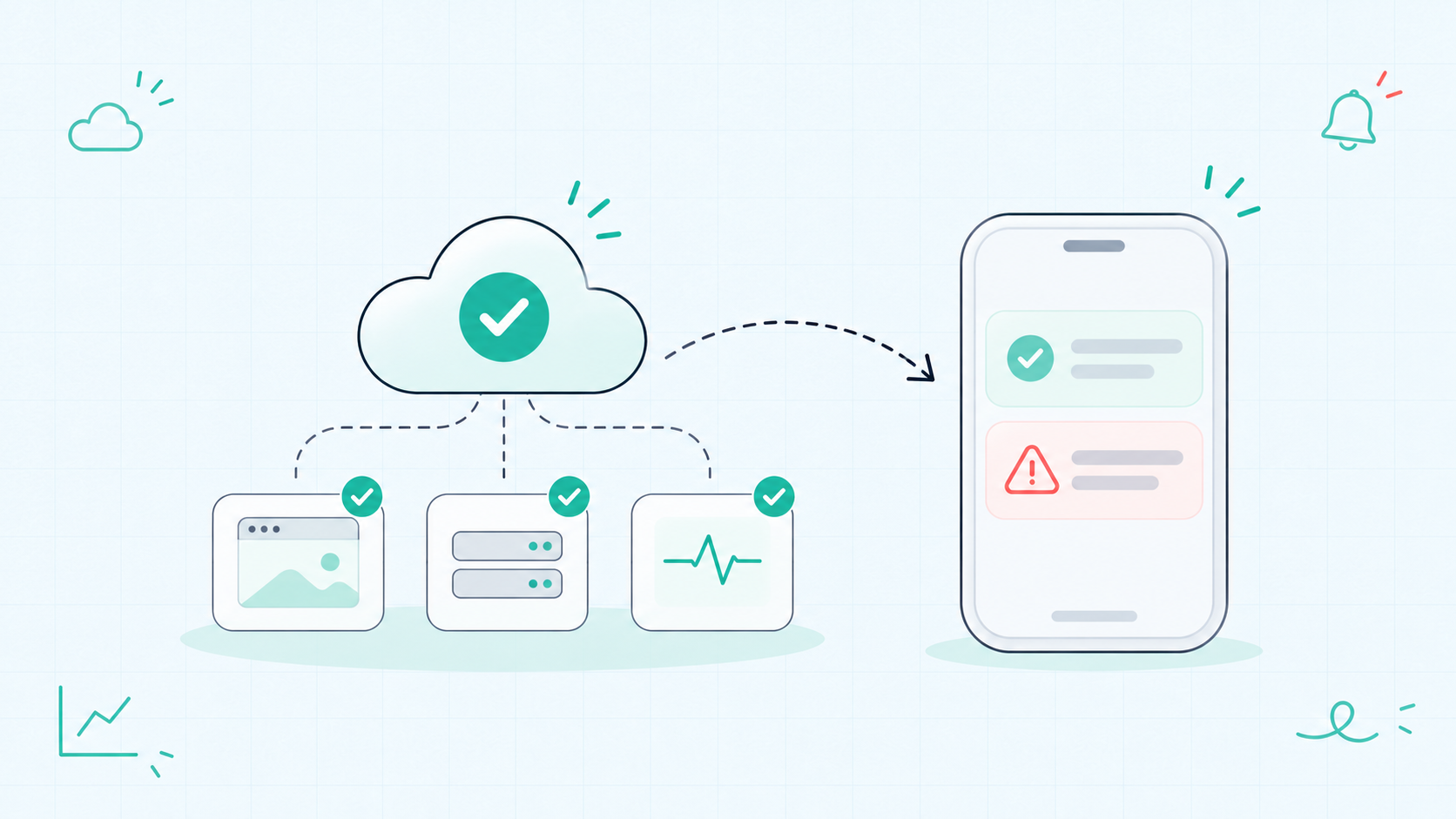
A website monitoring app helps you follow website health and receive alerts on your phone. What it detects depends on the checks behind it. For hosted monitoring, those checks run on the service’s infrastructure; your phone receives updates rather than performing the checks itself.
A customer reports that your app is unavailable just as you step away from your desk. Without a useful alert, you may not know which endpoint failed or where to begin.
For a solo developer or small SaaS team, a monitoring app can make that first response easier. It brings relevant updates to your phone so you can assess the situation and decide what needs attention.
The goal is not to solve every incident from a small screen. It is to get enough information to take the next sensible step.
This guide explains what to monitor, what to look for in an app, and how to test notifications. It also covers the limits of mobile alerts and how Appkeepr fits into the workflow.
The Appkeepr Brief
- Know what the app monitors. Availability checks and page-change tracking answer different questions.
- Confirm where checks run. Hosted checks can continue while your phone is offline, but notifications may not reach it immediately.
- Start with essential endpoints. Monitor the public pages and APIs your customers depend on.
- Look for useful context. An alert should identify the affected endpoint and help you decide what to investigate.
- Test notification delivery. Check subscriptions, permissions, and the path from a controlled failure to your phone.
- Verify recovery separately. A healthy endpoint response does not prove that every customer task works again.
What Does a Website Monitoring App Do?
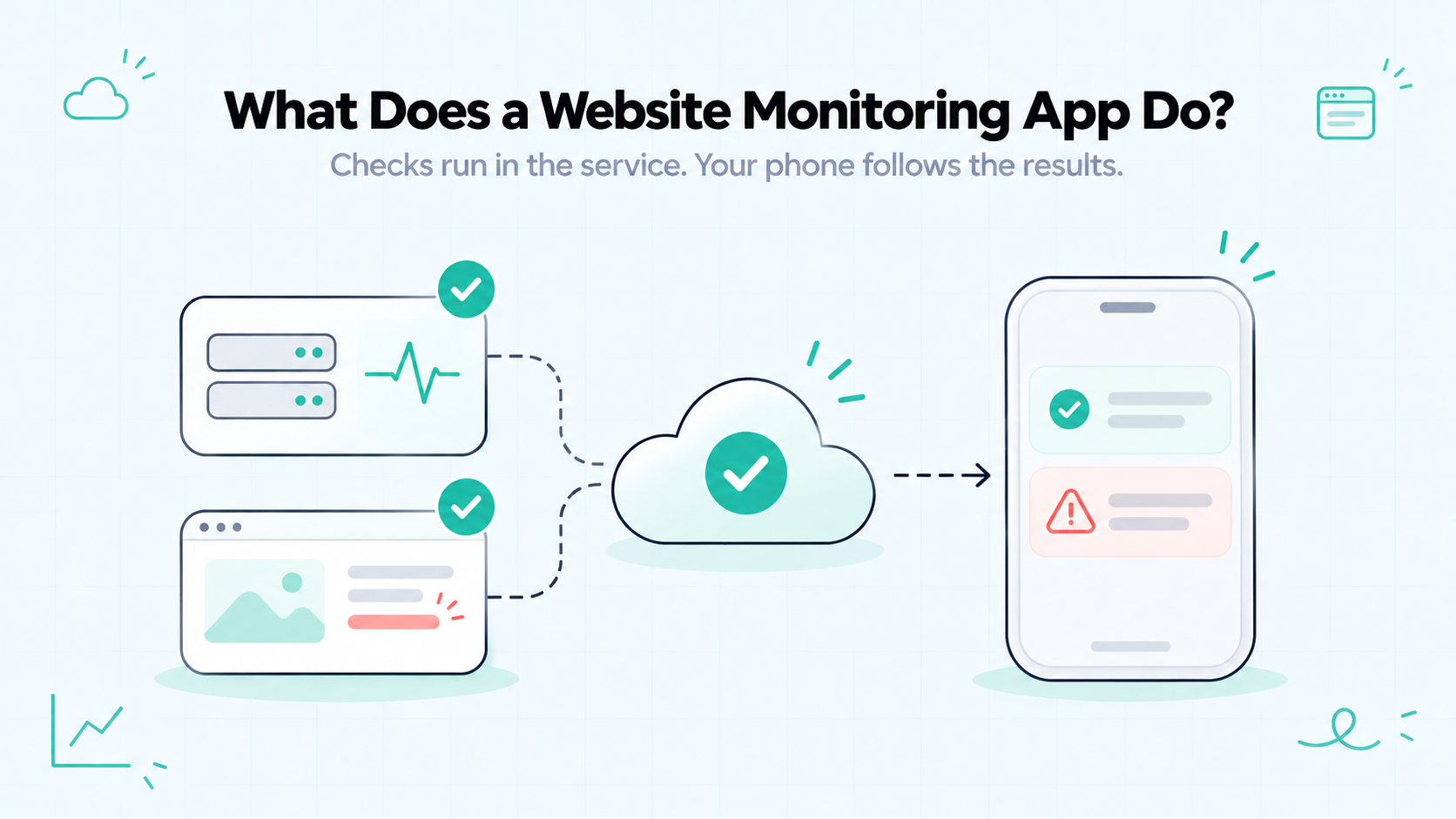
A website monitoring app helps you follow selected aspects of a site and review updates from a phone. Its coverage depends on the service behind it and the checks you configure.
Before choosing one, clarify what “monitoring” means for your product.
Availability Monitoring vs. Website Change Tracking
Availability monitoring checks whether an endpoint meets defined success rules. For example, a check might require your API to return an expected HTTP status within a timeout.
Website change tracking watches for changes to page content, layout, or selected elements. It might report a competitor’s updated pricing or an item returning to stock.
These methods answer different questions:
Monitoring type | Main question | Example signal |
Availability checks | Does this endpoint respond as expected? | An API returns an unexpected status |
Content-change tracking | Has something on this page changed? | A pricing section contains new text |
This guide focuses on availability and related operational updates. A mobile app that tracks page changes is not automatically an uptime monitor.
The Monitoring Service vs. the Mobile App
The service performing a check and the app displaying its result can be separate parts of the setup.
With hosted monitoring, remote infrastructure requests your endpoint. The mobile app receives notifications and presents whatever information the product supports.
That means hosted checks can continue while your phone is offline. Your phone may receive an update later, depending on connectivity and delivery settings.
Some products instead run checks on a local device or through a browser extension. Their operation depends on that environment.
Check the architecture before relying on an app. Installing it on your phone does not establish where checks run or what happens when you close it.
What Should You Monitor From Your Phone?
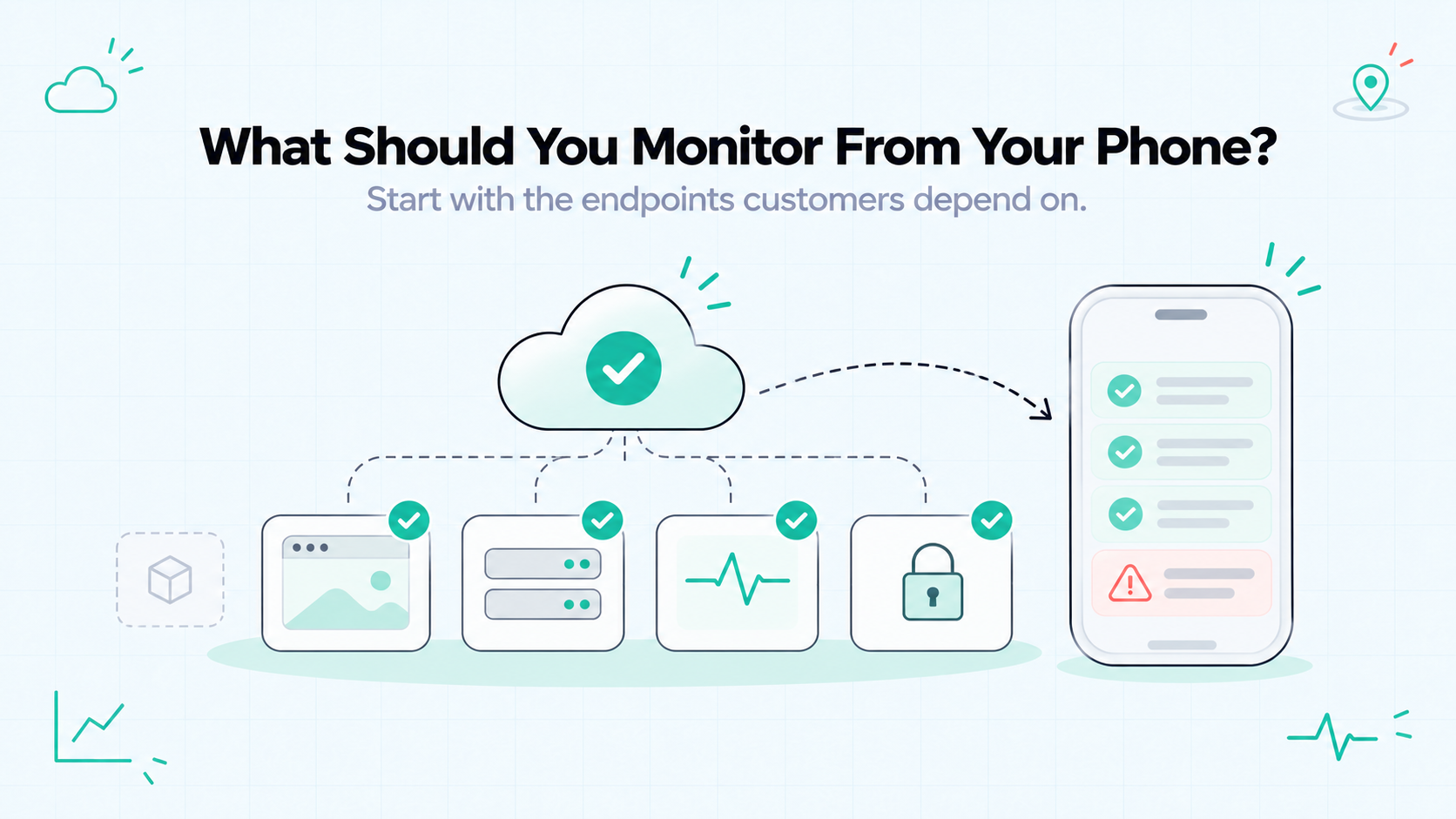
Choose checks around the parts of your product that customers depend on. Your phone is the place you receive the signal; the check determines what that signal actually tells you.
Start With Essential Endpoints
For a small SaaS, begin with a few URLs that represent distinct parts of the service.
Example check | What it can reveal | What it can miss |
Public homepage | Whether that page responds as expected | Failures in a separately hosted application |
Core API endpoint | Whether the selected request passes its rules | Problems in other API routes |
Application health endpoint | Whether its defined health conditions pass | Dependencies it does not evaluate |
Sign-in page | Whether the page is reachable | Whether authentication succeeds |
A health endpoint is useful only when its behavior reflects what you need to know. Microsoft’s health-endpoint guidance distinguishes a responding application process from one that can serve requests using essential dependencies.
Keep checks lightweight and avoid actions that create customer data or trigger paid operations.
Keep Monitoring Gaps Visible
A successful check applies to the request, conditions, and location tested. It does not establish that every user can complete every task.
If your product generates reports, a reachable dashboard may hide a stopped report-generation job. Detecting that gap needs a separate signal for job completion or expected activity.
Likewise, testing a sign-in page is different from completing a sign-in workflow.
If you ask me, record two things beside each monitor: what it verifies and what it leaves untested. That makes alerts easier to interpret and helps you decide where additional coverage is worth the effort.
How to Choose a Website Monitoring App
Choose a website monitoring app around the information you need while away from your desk. A long feature list matters less than checks that fit your endpoints and alerts you can understand.
Check Device and Endpoint Compatibility
First, confirm that the receiving app supports your phone and operating-system version. Check whether setup happens in a web console, the mobile app, or both.
Then review the monitoring rules:
- Supported URLs: Are your endpoints public, authenticated, or behind redirects?
- Check frequency: How often are requests made?
- Timeout: How long does the service wait before recording a failure?
- Success criteria: Does it evaluate status codes, content, or a complete workflow?
- Check locations: Where do requests originate, and does that coverage suit your users?
A mobile app does not automatically include every capability available in the service’s web interface. Verify the actions you expect to perform from your phone.
Look for Useful Incident Context
An alert should help you identify the affected service and choose the next step.
Compare the information available in the notification and after opening it:
Information | Why it helps |
Endpoint or monitor name | Identifies which part of your product needs attention |
Detection time | Helps match the failure with logs and recent changes |
Failure details | Distinguishes an unexpected response from a connection problem |
Recovery update | Shows that the check has returned to a healthy result |
Relevant links | Provides a route to further investigation, where supported |
A recovery message is useful evidence, but it does not verify tasks outside the check’s scope.
Compare Limits and Team Access
Review check allowances, notification options, retention periods, and billing terms. Distinguish an ongoing free plan from a temporary trial.
Also check who can view results, configure monitors, and receive notifications. These permissions may work differently.
For a micro SaaS team, assign responsibility instead of assuming everyone who receives an alert will investigate. If you work alone, choose a notification setup you can reliably notice.
I would test one representative endpoint and its notification path before committing. That reveals configuration restrictions and missing context that a feature checklist can overlook.
Follow Website Alerts With Appkeepr
Appkeepr combines supported endpoint monitoring with an inbox for messages from your code and connected services.
For a solo developer or small SaaS team, that brings availability signals and relevant product updates into one place.
Connect Checks and Product Updates
Appkeepr’s uptime checks run every 60 seconds with a ten-second timeout. HTTP 200–299 counts as healthy.
Its current confirmation process works as follows:
- First failed scheduled check: The status shows Confirming failure.
- Second consecutive failed scheduled check: A Down message is created.
- First successful check after confirmed downtime: A Back online message is created.
A successful check before downtime is confirmed clears the pending failure. This helps filter brief interruptions, but it also means detection is not immediate.
Use the final public URL because redirects are not followed. Supported endpoints use HTTP on port 80 or HTTPS on port 443, without embedded credentials.
Messages from your backend and supported integrations can provide additional context. They remain separate signals; a deployment update does not itself establish whether an endpoint is available.
Set Up and Test Your Notifications
Follow this sequence:
- Add an endpoint under Sources → Uptime in the web console.
- Choose a destination channel and, optionally, a project.
- Subscribe to the channel to receive its messages in your Inbox and notifications.
- Sign in on your phone with the same account and workspace, then enable notifications.
- Test the complete path using a controlled endpoint you own, without disrupting customers.
For a downtime test, allow two consecutive scheduled failures. A failed manual Check now does not advance that confirmation sequence.
The Appkeepr quickstart also explains how to send a new test message. That verifies messaging and phone presentation; the controlled failure test additionally checks monitoring behavior.
What to Do When an Alert Arrives
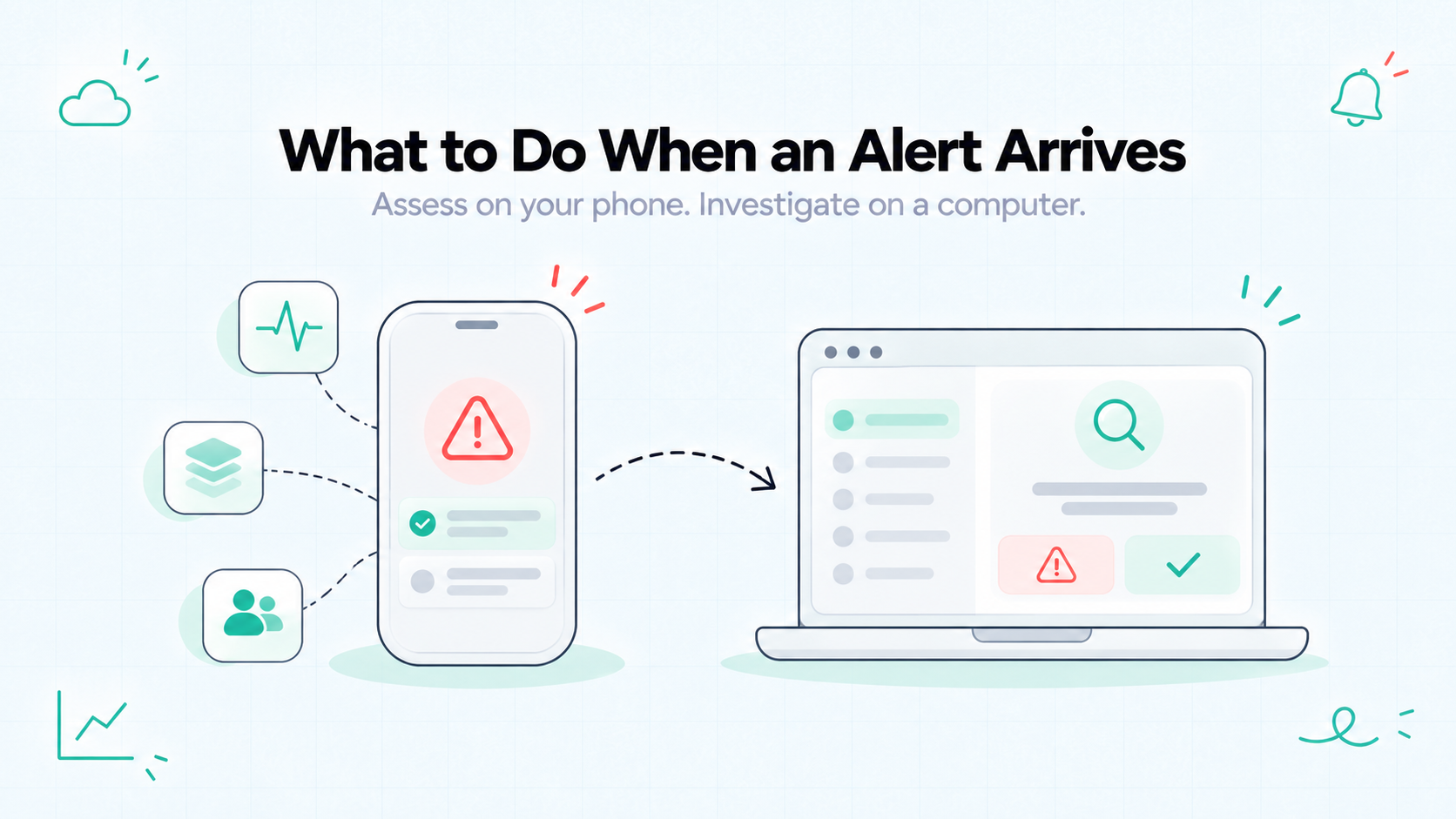
A website monitoring app helps you notice a failure. Your next task is to assess its impact and choose a response supported by the evidence.
Assess the Impact
Read the alert before making changes. Identify the endpoint, detection time, and reported failure.
Then work through a short checklist:
- Check the current state. Is the endpoint still failing, or has a recovery message arrived?
- Identify what depends on it. Could the failure affect an essential customer task?
- Review relevant changes. Look for recent deployments or configuration updates.
- Confirm responsibility. If someone else is investigating, coordinate before taking action.
A failed check is evidence about a particular request. Avoid assuming that every user is affected or that the most recent deployment caused the problem.
Keep a brief record of what you observe and do. Google’s incident-management guidance emphasizes clear responsibility, communication, and preserving evidence during recovery. A small team can apply those principles without adopting a large incident-management structure.
Decide What Needs a Computer
Your phone may be enough to review an update, contact a teammate, or read a provider’s status page. The available actions depend on the products and access you have configured.
Move to a computer when you need fuller logs, multiple diagnostic views, or a careful review before changing production.
Situation | Sensible next step |
Another teammate is responding | Share useful context and agree who acts |
The alert lacks diagnostic detail | Open the relevant logs or monitoring results |
A rollback appears necessary | Check release and database compatibility before proceeding |
The endpoint reports recovery | Verify the affected customer task separately |
If you ask me, a useful mobile response does not have to include a fix. Recognizing the impact and getting the right person involved is already valuable.
A recovery notification narrows the problem: the check passed again. It does not confirm that every feature or user location has recovered.
Why You Might Miss a Mobile Alert
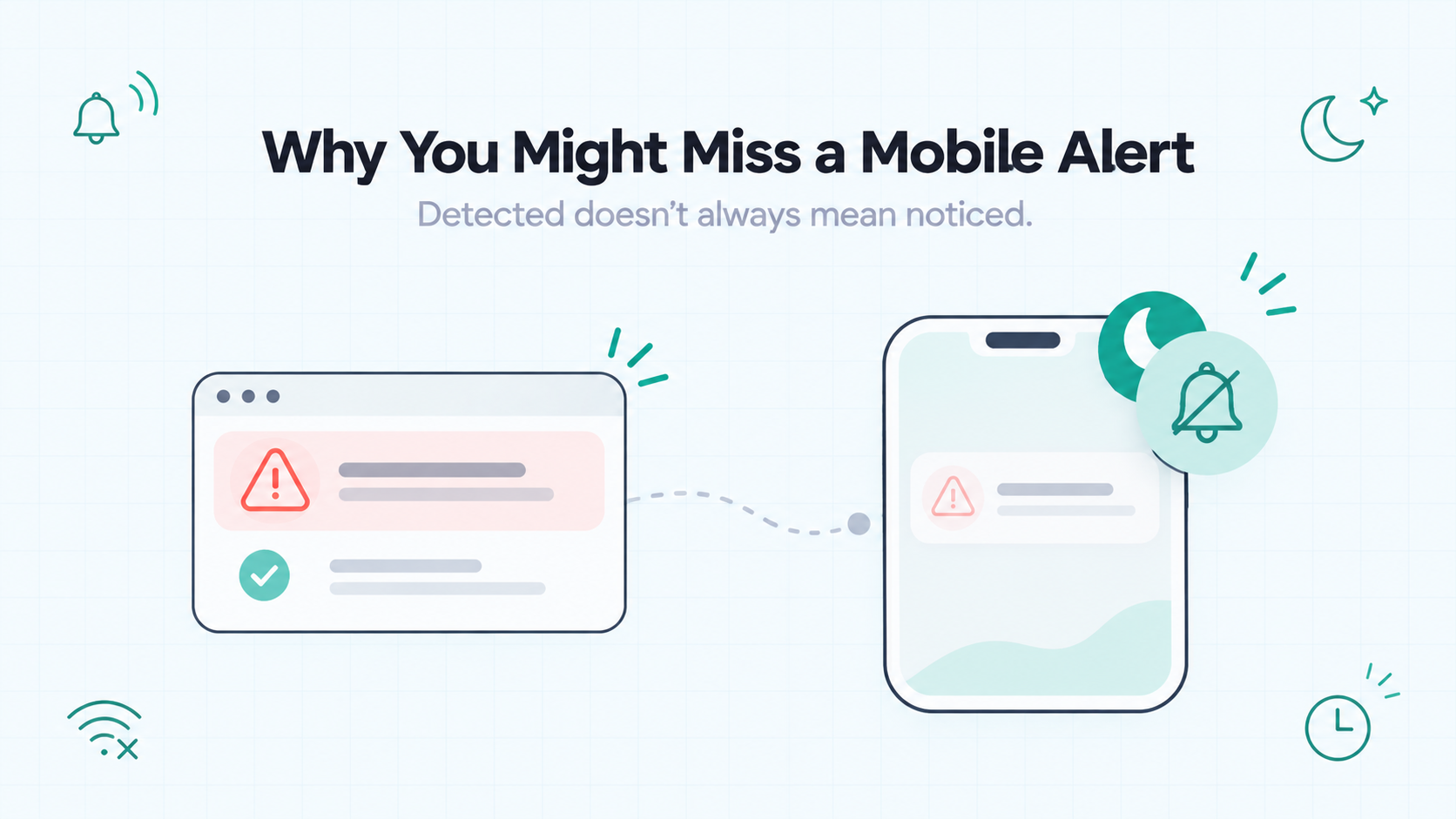
A website monitoring app can record a failure without producing an interruption you notice. Detection, message delivery, display, and acknowledgement are separate stages.
Start with the symptom rather than assuming monitoring stopped.
What you observe | What to check |
No failure appears in the service | Check configuration, confirmation rules, and whether the failure met those rules |
A failure appears, but no message reaches your inbox | Destination, event settings, and service errors |
The message appears in the inbox, but no phone alert appears | Subscriptions, notification permissions, and device connectivity |
An alert appears without sound | Sound settings, notification categories, and Focus or Do Not Disturb |
The alert arrives late | Detection timing, connectivity, delivery settings, and message expiry |
An offline phone may receive a pending push later, but delivery is not guaranteed indefinitely. Firebase’s delivery guidance explains that messages can be delayed or expire. Acceptance by a delivery service does not prove arrival on the device.
Presentation settings matter too. Apple’s Do Not Disturb guidance explains how Focus settings can silence alerts and allow exceptions. Android also provides app and notification-channel controls.
Check the receiving app’s settings as well as the phone’s. In Appkeepr, confirm that you subscribe to the destination channel.
Then send a new test message with the phone locked and the app in the background. Record whether it appears and makes a sound. Change one setting at a time.
For a critical incident, agree who responds and how to escalate if that person does not acknowledge it. A delivered notification alone is not a response plan.
Example: An Alert While You’re Away From Your Desk
Imagine you run a reporting SaaS and have configured Appkeepr to check a supported public API endpoint. You subscribe to its destination channel and enable phone notifications.
This is an illustrative scenario, not a recorded test. Notification arrival depends on connectivity, permissions, and delivery conditions.
The sequence might look like this:
- A scheduled check fails. Appkeepr shows Confirming failure while waiting for the next scheduled observation.
- The next scheduled check also fails. Appkeepr creates a Down message. In this example, the notification reaches your phone.
- You assess the situation. You identify the affected API and contact the teammate responsible for the recent deployment.
- Investigation moves to a computer. Your teammate reviews the relevant logs and takes a recovery action supported by the evidence.
- A later check succeeds. Appkeepr creates a Back online message after the confirmed Down state.
You then verify that customers can load and download reports. The healthy endpoint response alone does not establish that both tasks work.
The phone alert helped you notice the problem and coordinate a response. The logs and follow-up tests provided the evidence needed to investigate and confirm recovery.
If you work alone, the same sequence applies: use the alert for initial assessment, then move to the access and screen space the investigation requires.
Conclusion: Stay Informed With a Manageable Setup
A website monitoring app is useful when it connects meaningful checks with information you can act on. Start with essential endpoints, understand their limits, and test that notifications reach your phone.
Use mobile alerts for assessment and coordination. Move to a computer when investigation or recovery requires fuller access, then verify the affected customer task.
For a solo developer or micro SaaS team, a few well-chosen checks are a practical starting point.
Get started with Appkeepr, add a supported endpoint, subscribe to its channel, and test your notification setup before relying on it.
Frequently Asked Questions
A website monitoring app helps you follow selected aspects of website health and receive updates on a mobile device. Its capabilities depend on the service behind it. Some products report availability failures, while others track content changes or display events from connected systems. Check what generates the information, which conditions are evaluated, and what details you can access from your phone.
For hosted monitoring, checks run on the service’s infrastructure rather than your phone. They can continue while your phone is switched off or disconnected, although notifications cannot reach it until connectivity returns and may expire before delivery. Products that perform checks locally depend on their host device or browser environment. Verify where your chosen service runs its checks.
A basic endpoint check covers only the request and success criteria you configure. A working homepage does not prove that authentication, report generation, or every API route works. Broader coverage may require additional endpoints, browser workflow tests, and background-job signals. Start with essential customer tasks, identify what each check leaves untested, and choose complementary monitoring where needed.
Yes. You can use an existing receiving app connected to a monitoring service. Appkeepr checks supported public endpoints and creates Down and Back online messages according to its confirmation rules. Subscribe to the destination channel, sign in on your phone, and enable notifications. Test the complete setup so you understand both the check behavior and how alerts appear.
No. A recovery notification means the monitored endpoint met its success rules again. It does not verify every feature, account, dependency, or user location. Repeat the task that failed and review relevant evidence before closing the incident. If the problem was intermittent, continue observing results rather than treating one successful check as proof of lasting recovery.
Last updated
Rate this article
Share